Environments
A Product runs in one or more environments, in promotion order. Each environment is a zone: one running instance of the app, with its own address, settings and data. A typical Product has a Pre-production zone, <product>-rc, where you check a new version, and a Production zone, <product>-prod, that takes it once you approve.
A new Product gets its first environment when its repo starts from a template or a zip: one pre-production zone, <product>-rc, at a private address (Start from a zip). A Product made from existing repos starts with none until you set up delivery, and you add more whenever you like.
On the Product page
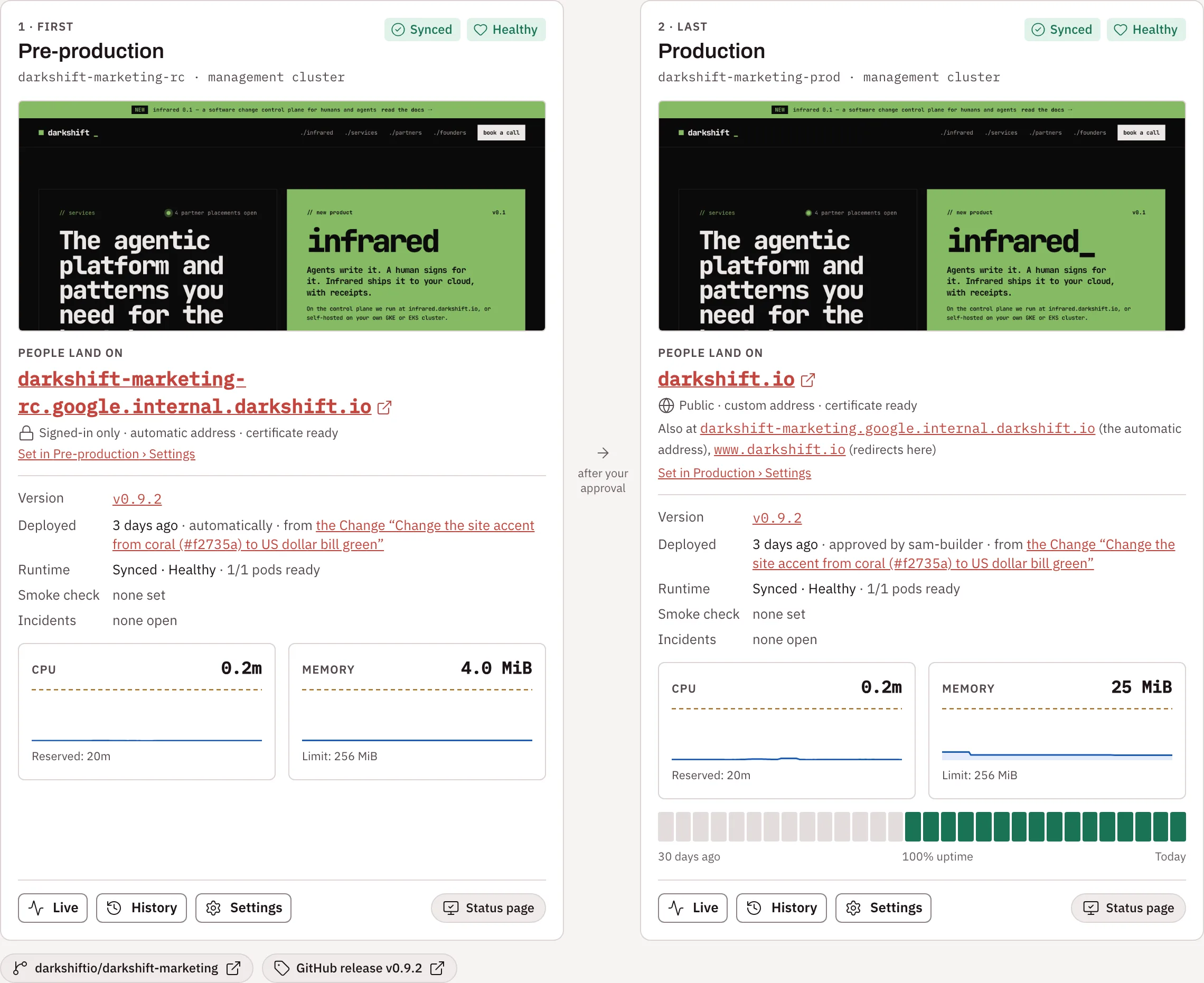
The Environments tab, which a Product's page opens on, has a tile per environment in promotion order. A Product with one environment gets one wide tile. With several, each tile is numbered (1 · first to <n> · last), and between two tiles the page says how a deployment crosses: automatically, or after your approval.
Each tile shows:
- Its name, Production or Pre-production, linking to the environment's page; the zone and the cluster it runs on; and Argo CD's sync and health, or Not deployed yet.
- A screenshot of the last deployment, taken once it passed its smoke check. Click it to open the site.
- People land on: the address, and who can open it: Signed-in only, Public, or Inside the cluster for a zone with no address (with Copy for its in-cluster address). It also says whether it is a custom or the automatic address, whether its certificate is ready, and lists its other addresses under Also at. When an address has a problem, or a change to it is rolling out, its checks show here too (Whether each address works). Set in
<environment>› Settings takes you to where you change it. - Version (linked to its deployment); Deployed: when, and how (automatically, or approved by whom), and from which Change, or from a deployment started by hand; Runtime: Argo CD's sync and health, and pods ready; the last Smoke check (none set when it has none); and open Incidents.
- Next: a newer version on its way, and whether it is waiting for your approval. Click it to act.
- CPU and Memory over the last hour, against what the pods reserve and their memory limit, for an environment on the management cluster.
- Uptime for the last 30 days, a bar per day, from the status page.
At the tile's foot, Live, History and Settings open those views of the environment's page, and Status page opens the Product's status page. Under the tiles are links to the Product's repos and its latest release on the forge.
A Product with only a production environment says so: each deployment goes straight there. An org admin can follow Add a pre-production environment from that note.
An environment's page
Click an environment's name to open its own page, at /products/<product>/instances/<zone>. The header names the environment, its health, the zone, the cluster and the version it runs, and Open <address> opens the site. The Product's name at the top takes you back. The page has four tabs.
Overview
The tile's content, with room to read it.
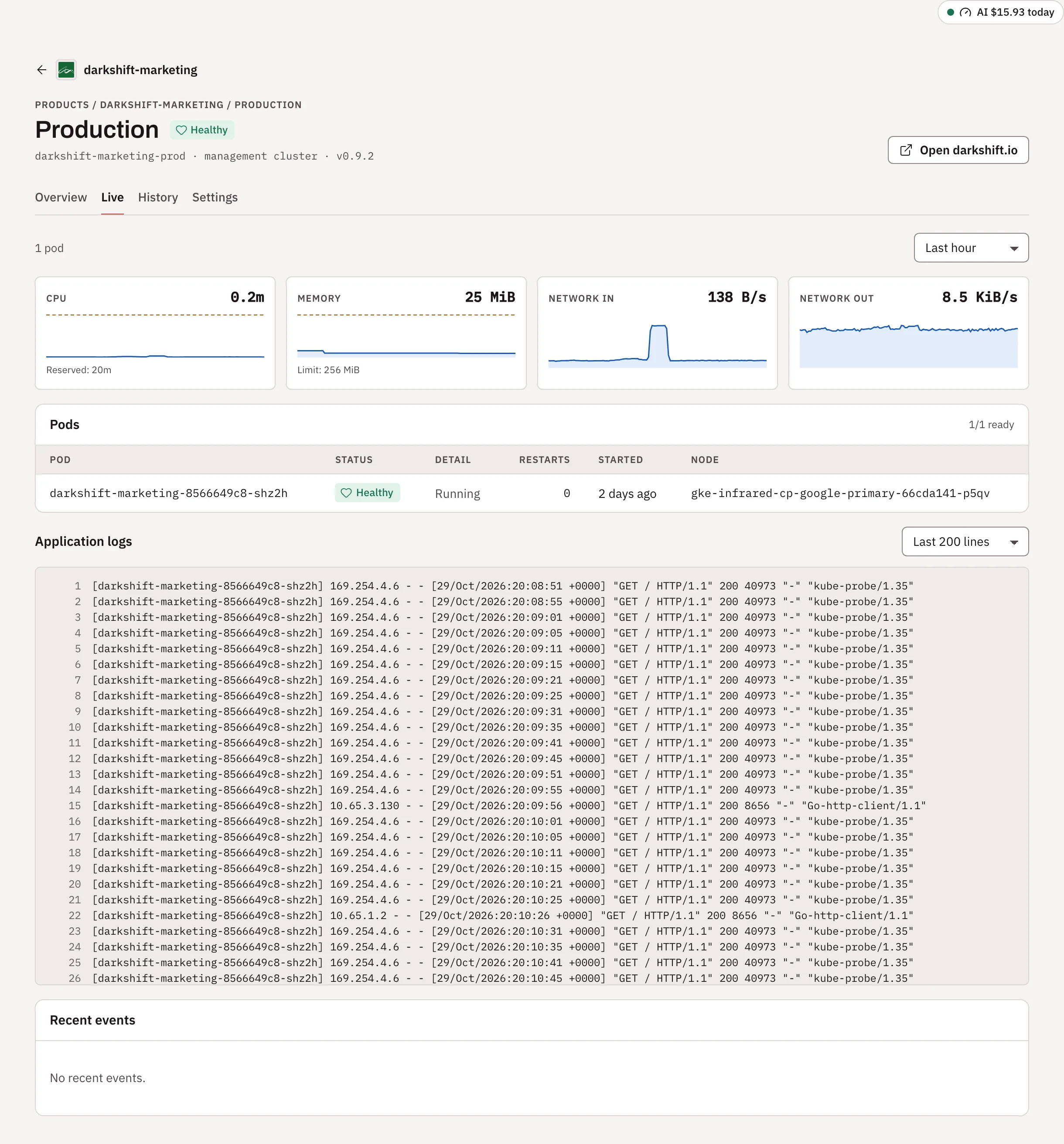
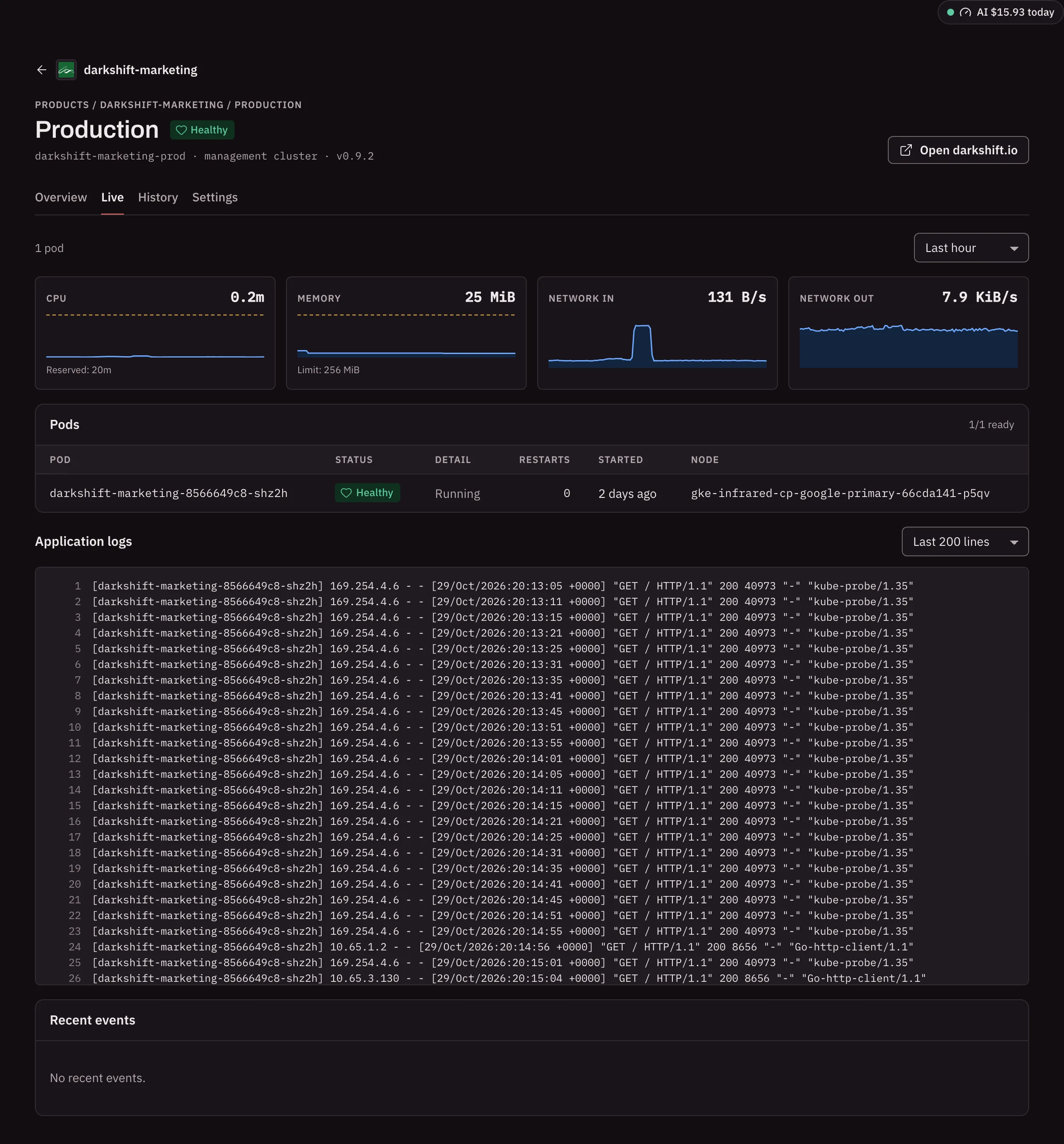
Its live view
Live shows CPU, memory, network in and network out of the app's pods, summed, over the last hour, 6 hours, 24 hours or 7 days (read from VictoriaMetrics). CPU is drawn against what the pods reserve, and memory against their limit (or what they reserve when there is no limit). Below the charts:
| Section | What it shows |
|---|---|
| Pods | Each pod's status, why it isn't running (for example CrashLoopBackOff), restarts, start time and node |
| Storage | Each persistent volume, its claim, status and size (only when the zone has volumes) |
| Application logs | The last 100, 200 or 1,000 log lines of each pod, refreshed every 10 seconds |
| Recent events | The zone's Kubernetes events, with warnings marked |
Resource use over time is measured for environments on the management cluster. For one on a workload cluster, Live says so and shows its pods, logs and events.
Its history
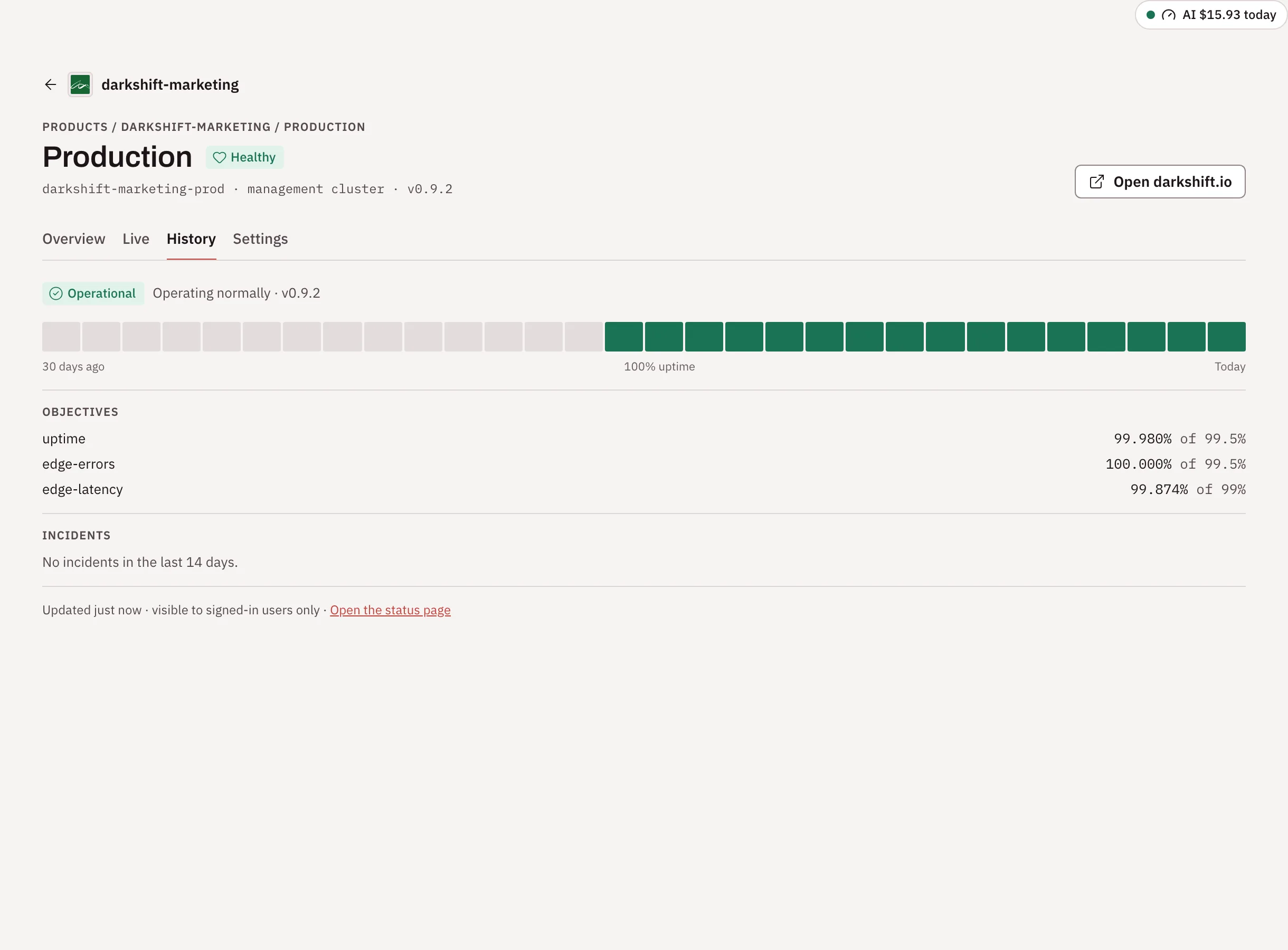
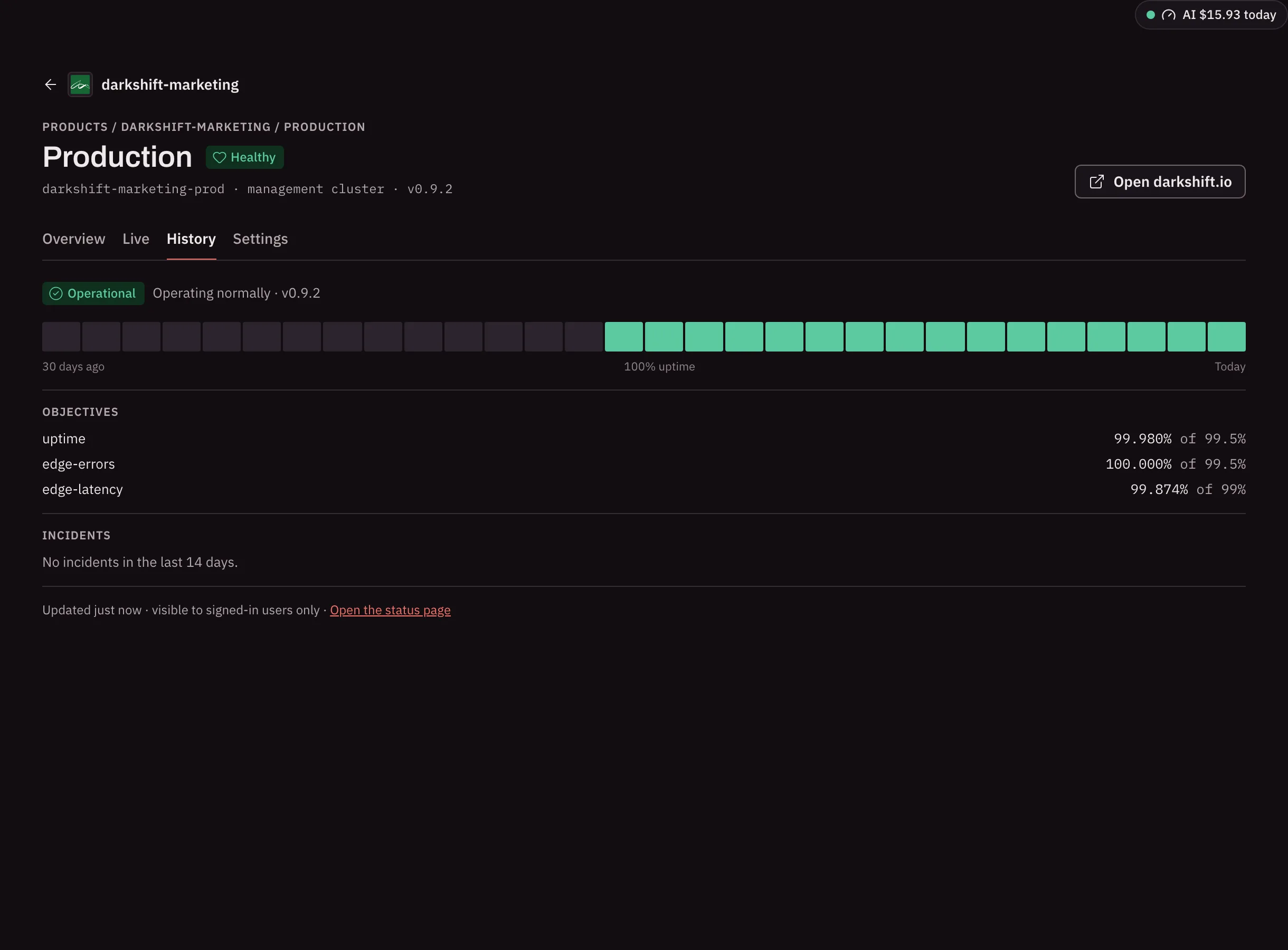
History is the environment's part of the status page: its state now (Operational, Degraded or Down, with why) and the version it runs, a bar per day for the last 30 days of uptime, its objectives with their attainment, and its incidents of the last 14 days with their updates. The foot says when it was updated and who can see the page, and Open the status page opens the page your visitors see.
Instance settings
Settings holds how this one environment runs. What belongs to the whole Product, such as its repos and the promotion order, is in the Product's settings.
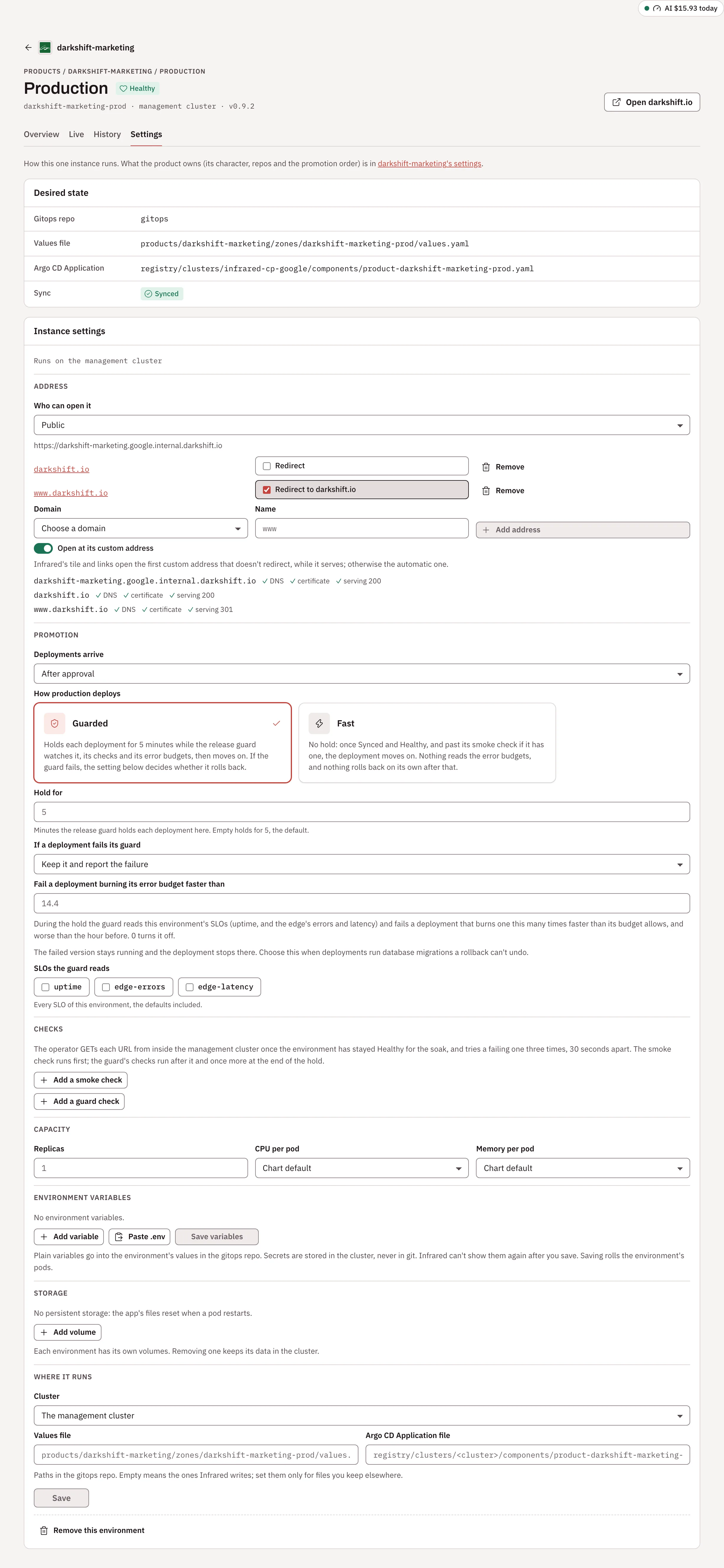
At the top, Desired state shows where the environment is kept: the gitops repo, its values file and its Argo CD Application, with links, and whether Argo CD has it Synced.
Below, under Instance settings, org admins change a setting and choose Save (or Discard). Infrared writes the change into the zone's values file through the gitops repo, and Argo CD applies it. Everyone else in the org sees the settings read-only.
| Setting | What it does |
|---|---|
| Who can open it | Signed-in only, Public (anyone with the address; Infrared asks you to confirm), or No address (reachable only inside the cluster). |
| Addresses | More addresses under the org's verified domains, such as www.acme.com, up to 10. See Domains and addresses. |
| Open at its custom address | On by default once the zone has an address that doesn't redirect: the tile, its screenshot and its main link open the first such address while it serves, and fall back to the automatic one when it doesn't. Off, they open the automatic address. |
| Deployments arrive | Automatically, or After approval (the default for production). With the Product's human approvals off, these environments take deployments on their own too. |
| How production deploys (or pre-production) | Guarded, the default: the release guard holds each deployment here while it watches its checks and error budgets, then moves on. Fast: no hold, so once the deployment is Synced and Healthy, and past its smoke check if it has one, it moves on, and nothing rolls it back on its own. See Guarded or Fast. |
| Hold for | Guarded only: the minutes the release guard holds each deployment here, a whole number from 1. Empty holds for 5. |
| If a deployment fails its guard | Roll back to the previous version: Infrared puts back the image the environment ran before, through a pull request to the gitops repo. Keep it and report the failure: the failed version stays running. A rollback never touches data, so pick the second when deployments run database migrations. |
| Fail a deployment burning its error budget faster than | The burn rate that fails a deployment during the hold, 14.4 when empty. 0 turns the error budget check off. Fast reads no error budget. |
| SLOs the guard reads | Which SLOs the error budget check reads. Empty means every SLO of the environment. |
| Checks | Add a smoke check and Add a guard check: URLs the operator gets from inside the management cluster once the environment has stayed Healthy for the soak, each with the status it expects and text it must contain. A failing check is tried three times, 30 seconds apart. |
| Replicas | How many pods run the app, 0 to 20. |
| CPU per pod and Memory per pod | What each pod reserves; memory is also its limit. Chart default leaves the chart's value. |
| Environment variables | Plain and secret variables, each environment its own. Secrets stay in the cluster and are never shown again. See Environment variables. |
| Storage | Persistent volumes: a name, a size and where the app sees it (for example data, 1Gi, /data). Each environment has its own. Removing a volume keeps its data in the cluster; delete its claim by hand to free the space. With a volume, pods are replaced rather than overlapped, since only one pod can mount it. |
| Cluster | Where the environment runs: the management cluster, or a workload cluster the org may use. Moving it starts it with empty volumes on the new cluster. |
| Values file and Argo CD Application file | Their paths in the gitops repo. Empty means the ones Infrared writes; set them only for files you keep elsewhere. |
Storage needs a chart that knows about volumes, so the section appears for Products Infrared scaffolded from a zip or a template, and for zones that already have volumes.
Add an environment
Open Product settings. Under Environments, each environment is listed in promotion order and links to its settings. Org admins choose Add an environment and pick:
- Environment: Pre-production or Production.
- Zone name:
<product>-rcor<product>-prodby default, then-2,-3and so on when taken. - Runs on: the management cluster, or a workload cluster the org may use.
- Promotion: Automatically or After approval (production defaults to after approval).
- Who can open it: Signed-in only, Public or No address.
Then choose Add environment. A pre-production environment goes after the other pre-production ones, before production, and a production one goes last. Infrared writes its files to the gitops repo, and the next deployment promotes to it. A new environment rolls back when a deployment fails its release guard.
Once a Product has shipped to pre-production and has no production environment, its page offers one: an org admin chooses Add <product>-prod, which takes each deployment after you approve it, behind sign-in until you make it public. An environment that runs nothing yet while a newer deployment exists gets Promote <version>, which opens that deployment so you can send it there.
Set up delivery
A Product made from repos that already existed isn't delivered anywhere until it has delivery. Under Environments in its settings, choose Set up delivery, and Infrared reads the repo and suggests how to build it:
- a Docusaurus, Vite or Astro site is a static site built with
npm run buildand served from its build folder (build/ordist/); - a
go.modmakes a Go service; - another
package.jsonmakes a Node app; - otherwise, the shallowest folder with an
index.htmlis served as it is.
Check Build it as and the Site folder, choose the first environment as above, then Set up delivery. Infrared writes the build, a chart and the environment to the gitops repo and starts the Product's first deployment, as for a Product started from a zip.
Remove an environment
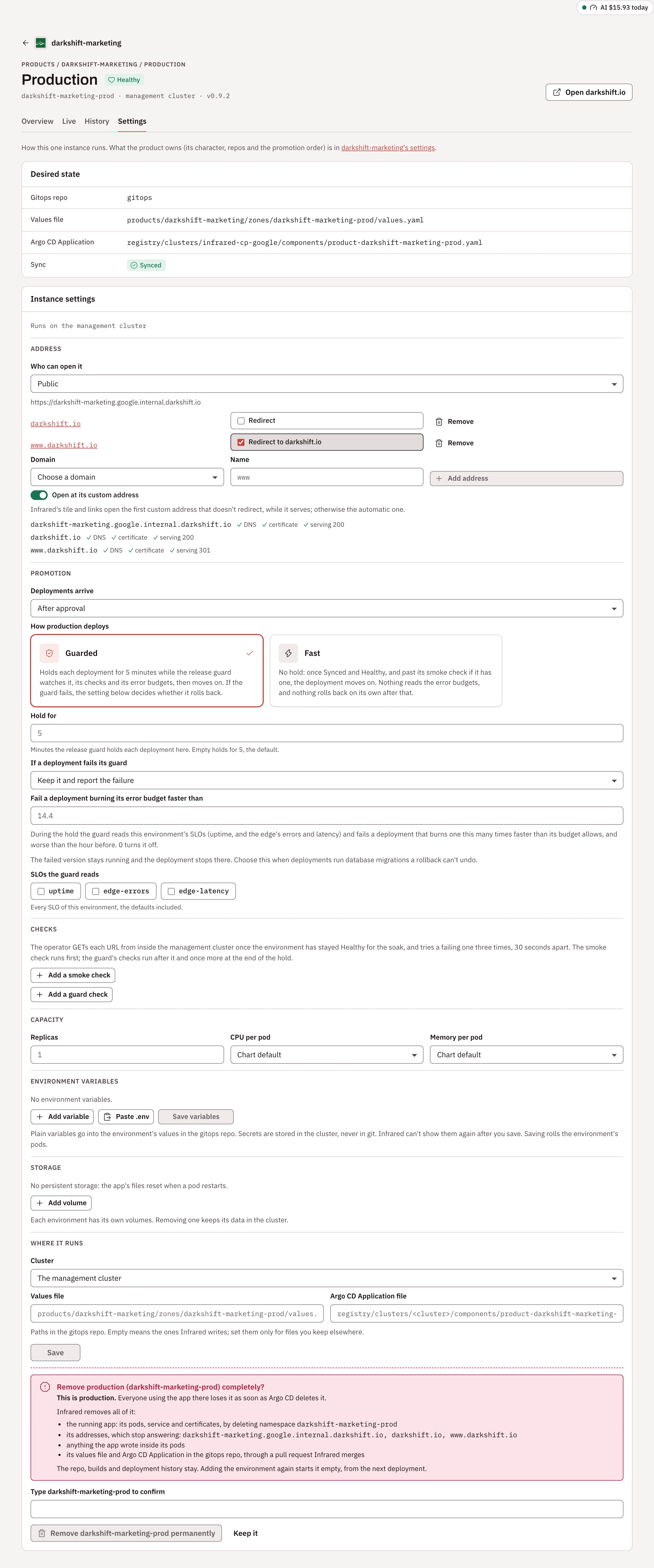
Remove this environment, at the bottom of an environment's settings, takes it away for good. Infrared first tells you what goes with it (the running app, its addresses, its persistent storage and every file in it, and its gitops files, with an extra warning for production) and asks you to type the zone's name. Remove <zone> permanently goes ahead; Keep it backs out.
Then Infrared:
- tells Argo CD to delete everything the zone's Application deployed;
- deletes the zone's values file and Application from the gitops repo, through a pull request it merges;
- deletes the Application, and waits while Argo CD deletes the app;
- deletes the zone's namespace on the management cluster, with its volumes and certificates. It only deletes a namespace labelled as the Product's. On a workload cluster, the namespace itself stays.
The Product's settings mark the environment as being removed until it is gone. The repo, builds and deployment history stay, and adding the environment again starts it empty.
Deleting the whole Product (Product settings → Delete product, then Delete <product> permanently) does the same for every environment, and also removes the Product's build and chart from the gitops repo. Its repos are not touched. If the gitops repo can't be reached, the Product is deleted and its files stay.
API
| Call | Returns |
|---|---|
GET /v1/orgs/{org}/products/{name}/zones | Each environment as it runs |
GET /v1/orgs/{org}/products/{name}/zones/{zone} | One environment in detail: pods, volumes, events, reservations |
GET .../zones/{zone}/metrics?hours=6 | CPU, memory and network series, 1 to 168 hours back (default 1) |
GET .../zones/{zone}/logs?tail=200 | Recent log lines per pod, as text (tail up to 2000, default 200) |
An environment's settings are its zone in the Product's spec.delivery.zones, changed with replace-product.