Domains and addresses
Every environment with an address gets one under the installation's platform domain, for example https://<product>-rc.apps.example.com. Your org can add more domains and give any environment extra addresses under them, such as www.acme.com for production. Infrared checks the DNS for you and tells you, in plain words, which record to add and where.
The domains an org can use
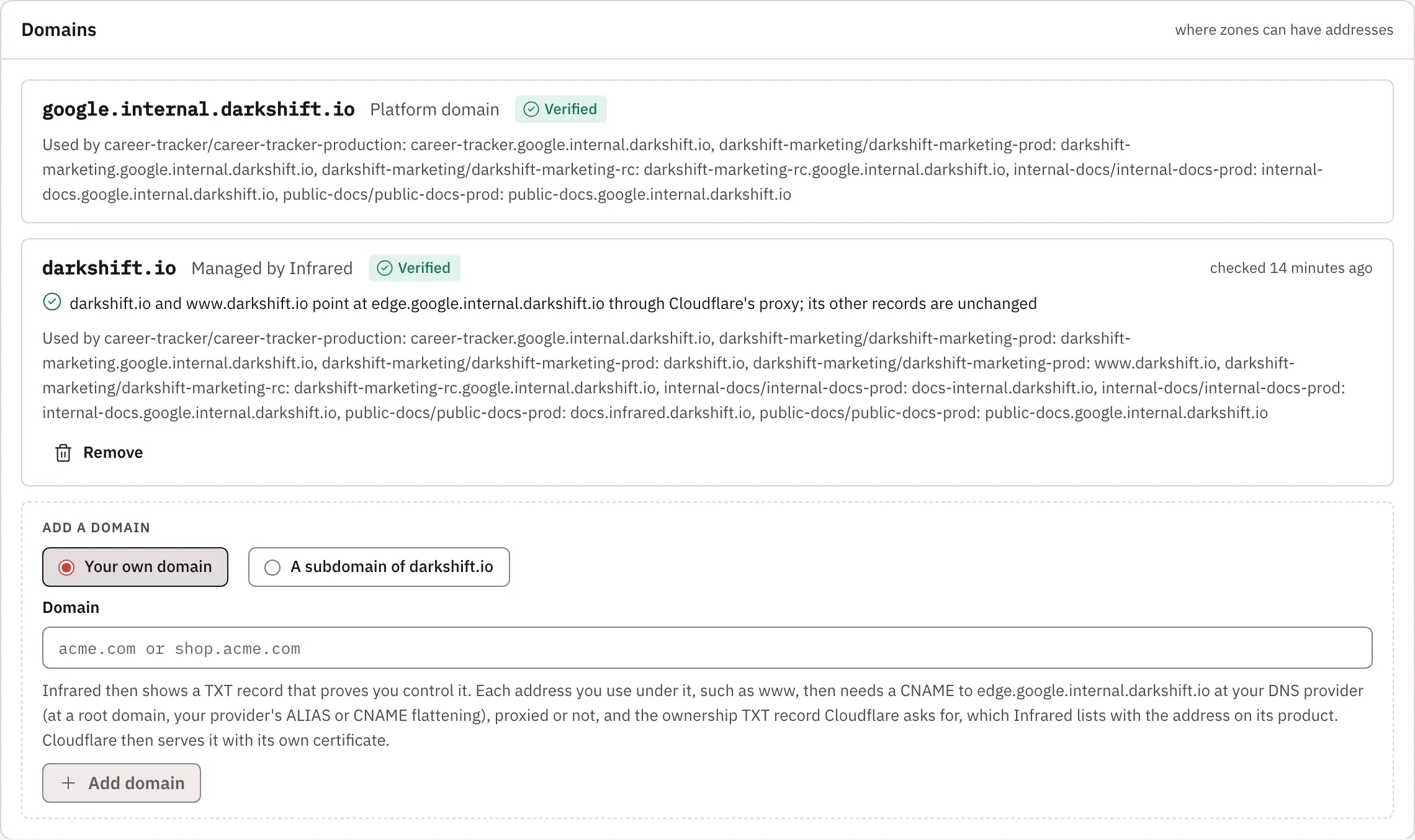
Settings → Domains lists the domains your org can use, each with its kind, its status (Waiting for DNS, Verified or Failed), when Infrared last checked it, and the addresses that use it. Org admins add domains below the list.
| Kind | What it is | Who sets up DNS |
|---|---|---|
| Platform domain | The installation's domain, shared with every org | The installation's administrators, once |
| Managed by Infrared | A subdomain of a root the installation manages, such as acme.example.com | Infrared creates acme.example.com and *.acme.example.com itself |
| Your domain | A domain your org owns, such as acme.com or shop.acme.com | You, at your DNS provider, with the records Infrared shows |
Any org may claim a managed subdomain or add its own domain, and the first org to claim a name keeps it. Only the platform org's domains can be shared with every org. Some names can't be claimed under a managed root because the platform uses them (www, api, docs, app, apps, status, admin, auth, login, dev, staging, prod and similar). Managed subdomains are offered only when the installation has set up managed roots (see Set up the platform domain).
Add your own domain
- Under Add a domain, choose Your own domain, type it (for example
acme.comorshop.acme.com), and choose Add domain. - Under Add at your DNS provider, Infrared shows the records to add, each with its type, name and value, a copy button and what it's for:
- a TXT record at
_infrared.<domain>withir-verify=<token>, which proves your org controls the domain. Leave it in place; Infrared keeps checking it. - a CNAME from the domain to the installation's ingress host, or an A record to its IP for a root domain like
acme.com(a root can't have a CNAME, but an ALIAS or CNAME flattening to the ingress host works too). Add one like it for each address you use under the domain, or a wildcard*.<domain>.
- a TXT record at
- Infrared checks DNS every minute while the domain waits (Check now checks at once) and tells you what it found: whether the TXT record is there with the right value, whether the domain reaches Infrared, points somewhere else or doesn't resolve yet, and whether a CAA record would stop Let's Encrypt from issuing certificates.
Once the TXT record is found, the domain is Verified and you can use it for addresses. Infrared keeps checking it every half hour, and if the TXT record disappears, it tells you to put it back before the domain's certificates renew.
If your DNS is on Cloudflare, keep these records DNS only (the grey cloud). Through Cloudflare's proxy, traffic and certificate checks don't reach Infrared, and Infrared says so.
On an installation whose edge is the Gateway (Envoy), your own domains are served as Cloudflare for SaaS custom hostnames, once a platform admin turns them on. Each address you use then needs a CNAME to the host Infrared names (proxied or not), plus the ownership TXT record Cloudflare asks for, which Infrared lists with the address on the environment. Cloudflare then serves it with its own certificate. Until custom hostnames are on, the form says the installation doesn't serve your own domains yet.
Claim a subdomain
Under Add a domain, choose A subdomain of <root>, type a name, and choose Claim <name>.<root>. Infrared creates its DNS records (the name and a wildcard under it), so it is Verified within seconds. A reserved name, or one another org or an existing DNS record already has, fails with a message that says so. Removing the subdomain removes the records.
Claim the root domain itself
The platform org can also claim a managed root itself, so a site can live at the bare domain (example.com rather than a name under it). Under Add a domain, choose The root domain itself and Claim <root>. Infrared creates exactly two records: an A record at the apex pointing at the ingress IP, and a CNAME for www. It adds no wildcard, and leaves every other record in the zone, such as mail (MX) and verification (TXT), as it is. If someone else's A, AAAA or CNAME record already sits at either name, the claim fails and says so. Other orgs can't claim a root. Removing the claim removes those two records.
Remove a domain
Remove, on a domain your org added, takes it away after you confirm. Environments can no longer use addresses under it, so Infrared refuses while one still has one. Records you added at your DNS provider stay until you delete them.
Give an environment more addresses
Open the environment's Settings (from its tile on the Product's page, or its own page), and under Address:
-
Choose a Domain. Each domain says who makes the DNS record for an address under it:
- Infrared sets up DNS: a managed domain. Infrared creates the record when you save.
- Infrared's platform domain: the installation's shared domain. An address under it needs a name, and its DNS is already in place.
- you add a DNS record at your DNS provider: your own domain. Infrared can't create records there.
-
Type a Name (for example
www), or leave it empty to use the domain itself. -
Infrared shows whether the address is free across the installation, then checks its DNS the way visitors see it, and tells you where it stands:
- Ready: it points at Infrared, or Infrared will make its record.
- Pending: the exact record to create and where your DNS is hosted, read from the domain's nameservers. For example, at Cloudflare: a
CNAMErecord, nameshop, valueingress.apps.example.com, DNS only. A root domain gets anArecord to the ingress address, since a root can't have a CNAME. - Blocked: something a platform admin has to do first, and what.
Create the record and choose Check again, or add the address now and create the record afterwards: it waits on DNS until then.
-
Choose Add address, then Save.
With no verified domain yet, the panel points you to Settings → Domains.
Tick Redirect on an address to send its visitors to the environment's main address (the first address that doesn't redirect, or the platform address when all do) with a permanent redirect that keeps the path and query. The usual pair is the bare domain, plus www redirecting to it.
Whether each address works
Infrared checks every address of an environment every few minutes, and every 20 seconds while something is on its way:
| Check | What it means |
|---|---|
| DNS | Public DNS resolves the address to Infrared's ingress. |
| Certificate | The address's certificate is ready, still being issued (pending) or failed, with the reason. |
| Serving | An HTTPS request for the address, made through the cluster's ingress, got an answer, with its status (for example serving 303). |
When one fails, the environment's tile shows the checks with an amber note that says what's wrong and how to fix it, for example "no DNS record for shop.acme.com points at Infrared yet". An address under your own domain also lists the records to add, but only while its DNS doesn't point at Infrared yet, something is wrong with it, or its custom hostname isn't active. Once it works, the tile drops them.
Rollout after a change
Changing who can open an environment, or its addresses, commits to the gitops repo. Infrared asks Argo CD to apply that commit straight away rather than at its next poll, and the tile follows the change: Committed (with a link to the commit), Syncing (Argo CD applying it), Certificate (a new address's certificate being issued) and Live.
Every address is served over HTTPS only: a request over plain HTTP gets a permanent redirect to the same address on HTTPS. Let's Encrypt's HTTP challenges still answer over HTTP, so certificates keep renewing.
Infrared writes the addresses into the zone's values through the gitops repo. The chart serves each one with its own certificate, behind the same sign-in (or none, when public) as the environment's platform address.
API
| Call | What it does |
|---|---|
GET /v1/orgs/{org}/domains | The domains the org can use, with records, checks and the addresses under each |
POST /v1/orgs/{org}/domains | Add one: {"name": "acme.com", "kind": "external"} or {"name": "acme.example.com", "kind": "managed"} (org admins) |
POST /v1/orgs/{org}/domains/{domain}/check | Check its DNS now instead of at the next minute |
DELETE /v1/orgs/{org}/domains/{domain} | Remove it; refused while an environment has an address under it (org admins) |
GET /v1/orgs/{org}/addresses/available?host=www.acme.com | Whether an address is free |
GET /v1/orgs/{org}/addresses/check?host=www.acme.com | Its DNS: the domain and kind it falls under, where the DNS is hosted, whether it points at Infrared, its state (ready, pending or blocked), and the record to add |
An environment's extra addresses are spec.delivery.zones[].addresses on the Product, for example [{"domain": "acme.com"}, {"domain": "acme.com", "name": "www", "redirect": true}]. What each address does now is in status.zones[].addresses (host, dns, certificate, serving, message, checkedAt), and the latest change's rollout in status.zones[].rollout (commit, commitURL, summary, at, phase).