Start on hosted Infrared
Hosted Infrared is Infrared that Darkshift runs for you at infrared.darkshift.io. There is nothing to install and nothing to connect first: sign in, say what your app is, and Infrared builds it, puts it live and changes it when you ask in your own words.
This guide follows one new person from signing in to a change running in production. It takes about 45 minutes, most of which is Infrared working while you do something else.
Before you start
- An invitation. Hosted Infrared is in private beta, by invitation. Darkshift invites the Google address you will sign in with. Signing in with any other address shows the private beta page, which says how to ask for an invitation.
- A Google account. That is all you sign in with.
- A GitHub organization, only if your code is on GitHub. Infrared connects to a GitHub organization, never a personal account. A free one is enough. If your code is under your own name, see If your code is on GitHub before you start. Starting from a template or an idea needs no GitHub at all.
- No Anthropic key, for now. Infrared includes agent work for every new org, $15 of it, so your first apps and changes cost you nothing. When you want to keep going past that, add your own key (see When the included work runs out).
1. Sign in
Open infrared.darkshift.io and choose Continue with Google, with the address you were invited with.
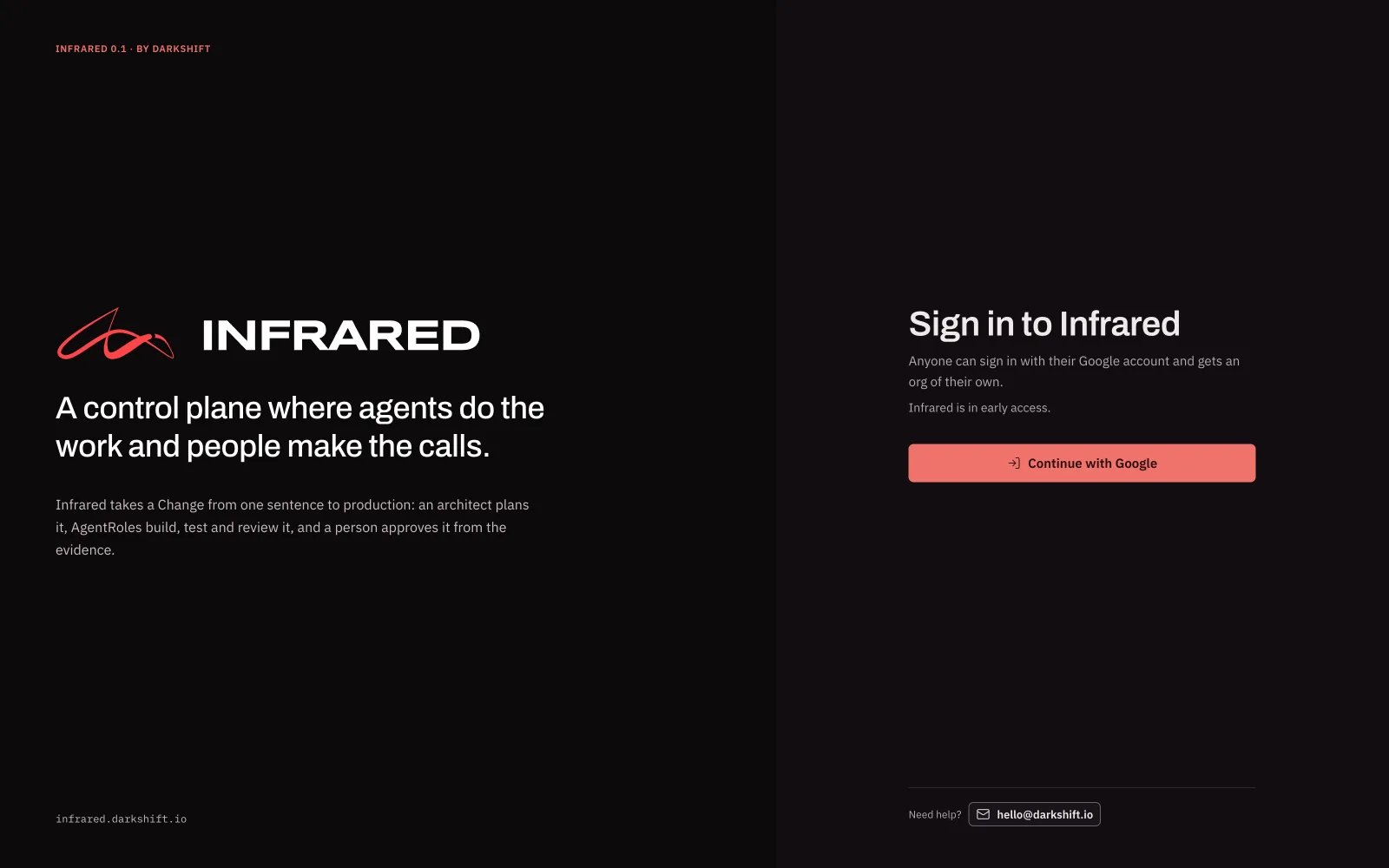
The first time you sign in, Infrared makes an org of your own: your apps, your requests and your settings, kept apart from everyone else's. You are its admin.
2. Your first app
Infrared calls an app a Product. The first screen asks for one: what it is called, and where it is now.
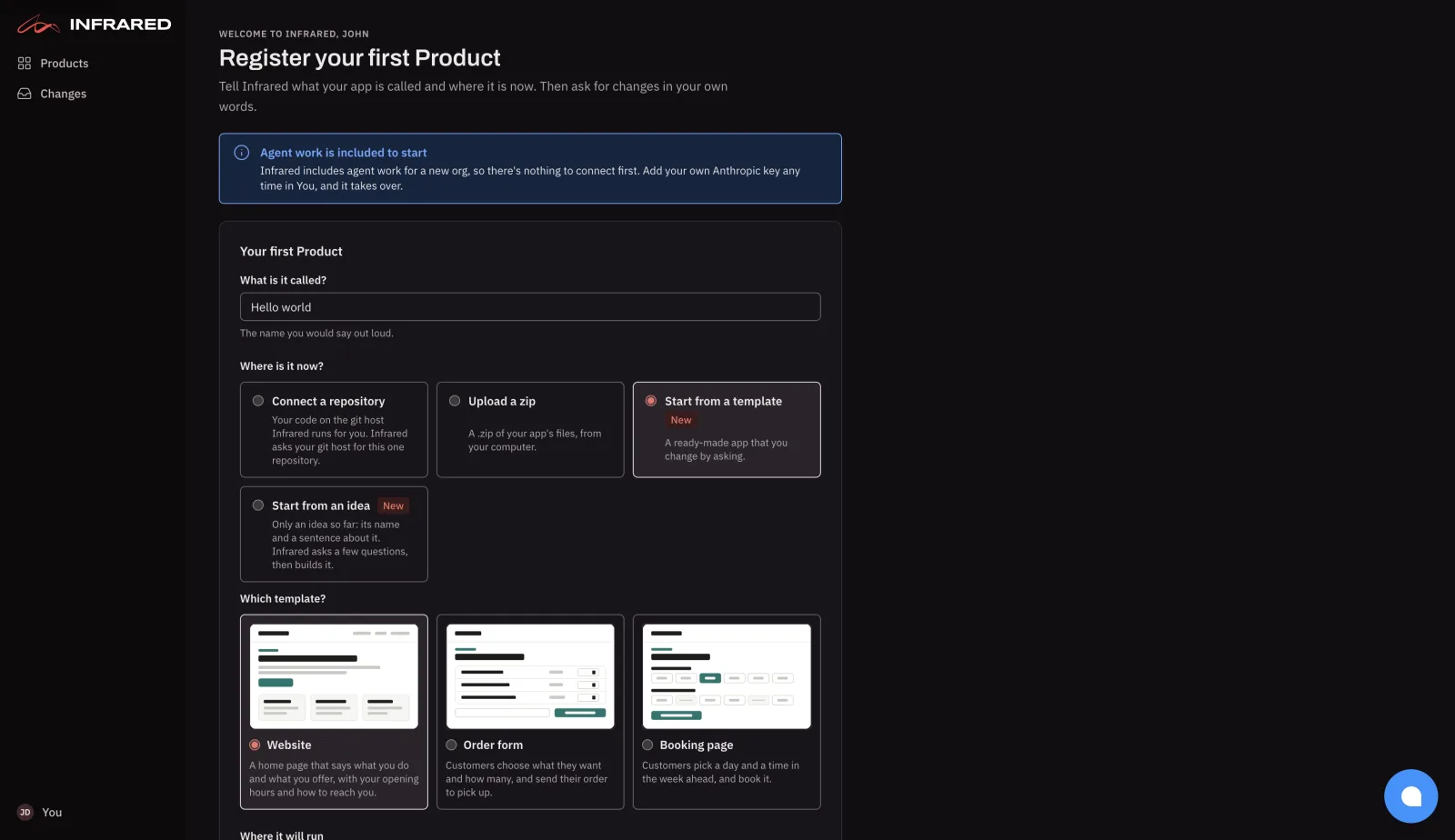
- In What is it called?, give it the name you would say out loud, such as "Hello world".
- In Where is it now?, pick one:
- Start from a template: a ready-made app you change by asking. There are three: a Website (what you do, your opening hours, how to reach you), an Order form and a Booking page. The quickest way to see Infrared work.
- Start from an idea: only a name and a sentence about it. Infrared asks a few questions, then builds it. See From an idea.
- Upload a zip: a .zip of an app you already have.
- Connect a repository: code already on the git host Infrared runs for your org, or in your GitHub organization once it is connected (see If your code is on GitHub).
- Choose Register it.
Infrared takes you to a page that follows your app to production, one step after another. You can leave it: the work carries on, and the app's page shows where it is.
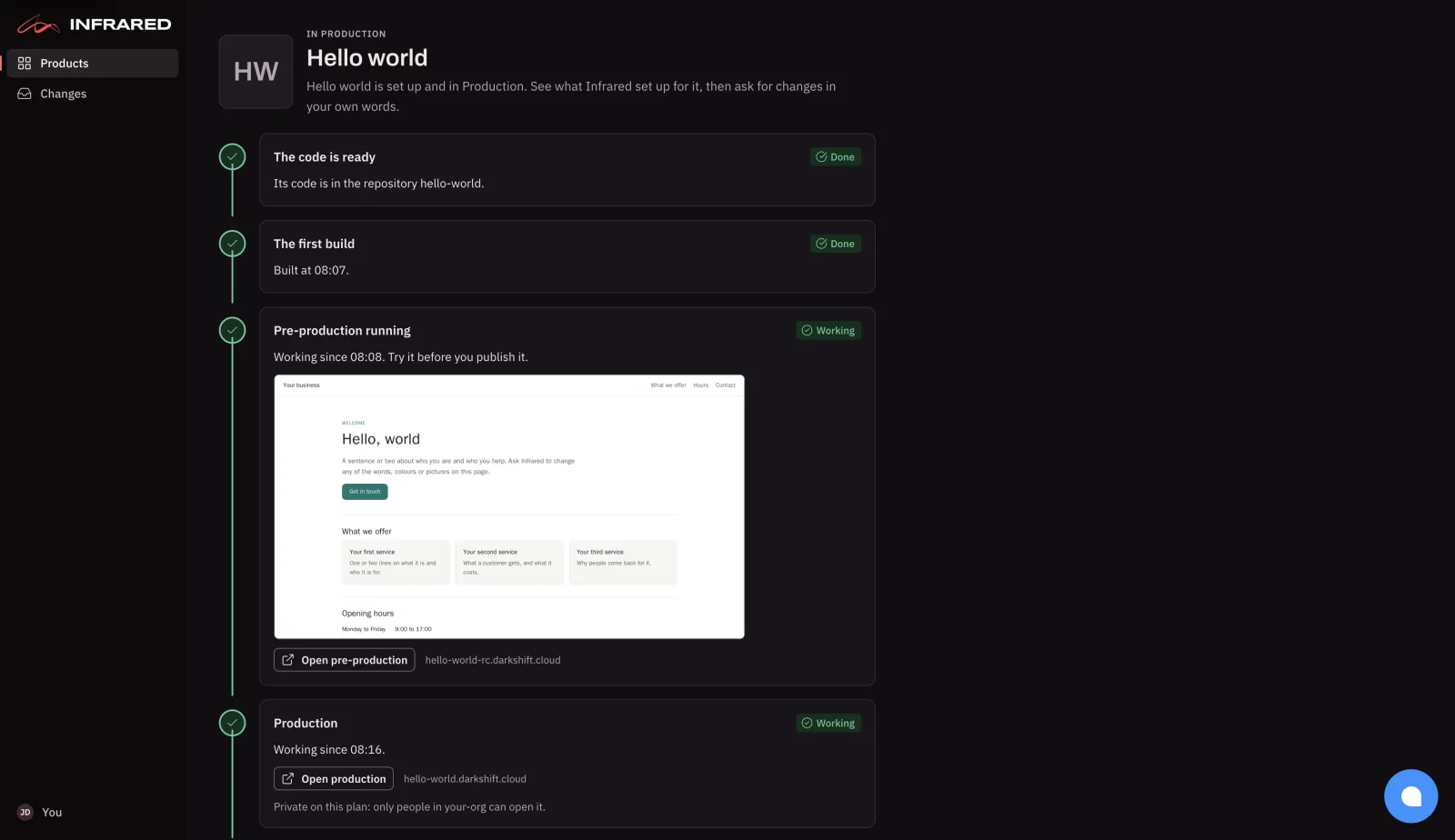
From a template, the first build took about three minutes and Pre-production was running about six minutes after that.
3. Try it, then publish it
Every app gets two places to run:
- Pre-production, where you try each change first, at
<your-app>-rc.darkshift.cloud. - Production, what your customers use, at
<your-app>.darkshift.cloud.
Choose Open pre-production and look at your app.
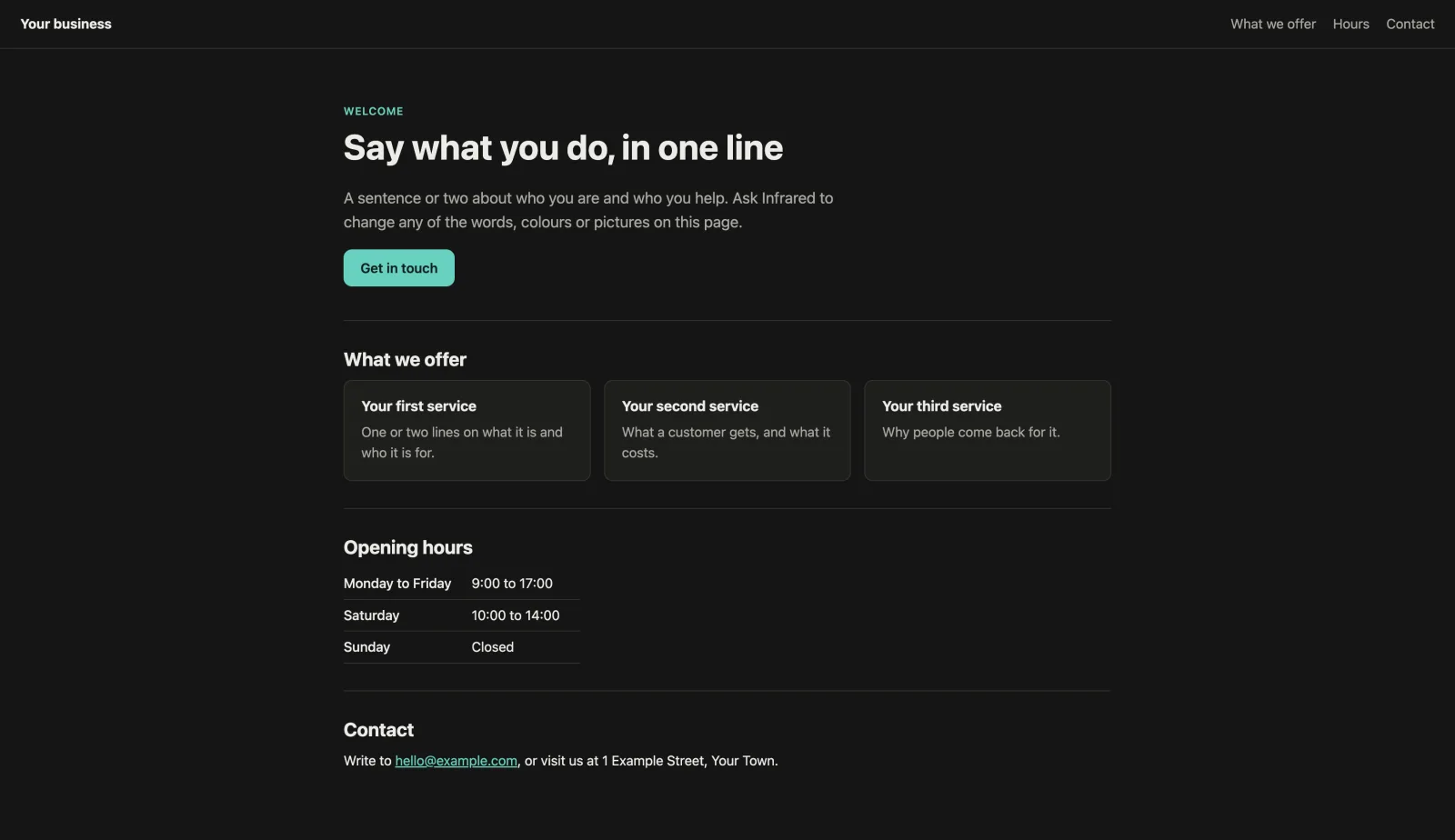
When you are happy with it, choose Publish to production, then confirm. Production was running about four minutes later. Once it works, the last step says Done and offers What Infrared set up: the code, both environments, the checks every change goes through and the house rules Infrared's agents follow, with three suggestions of what to ask for next.
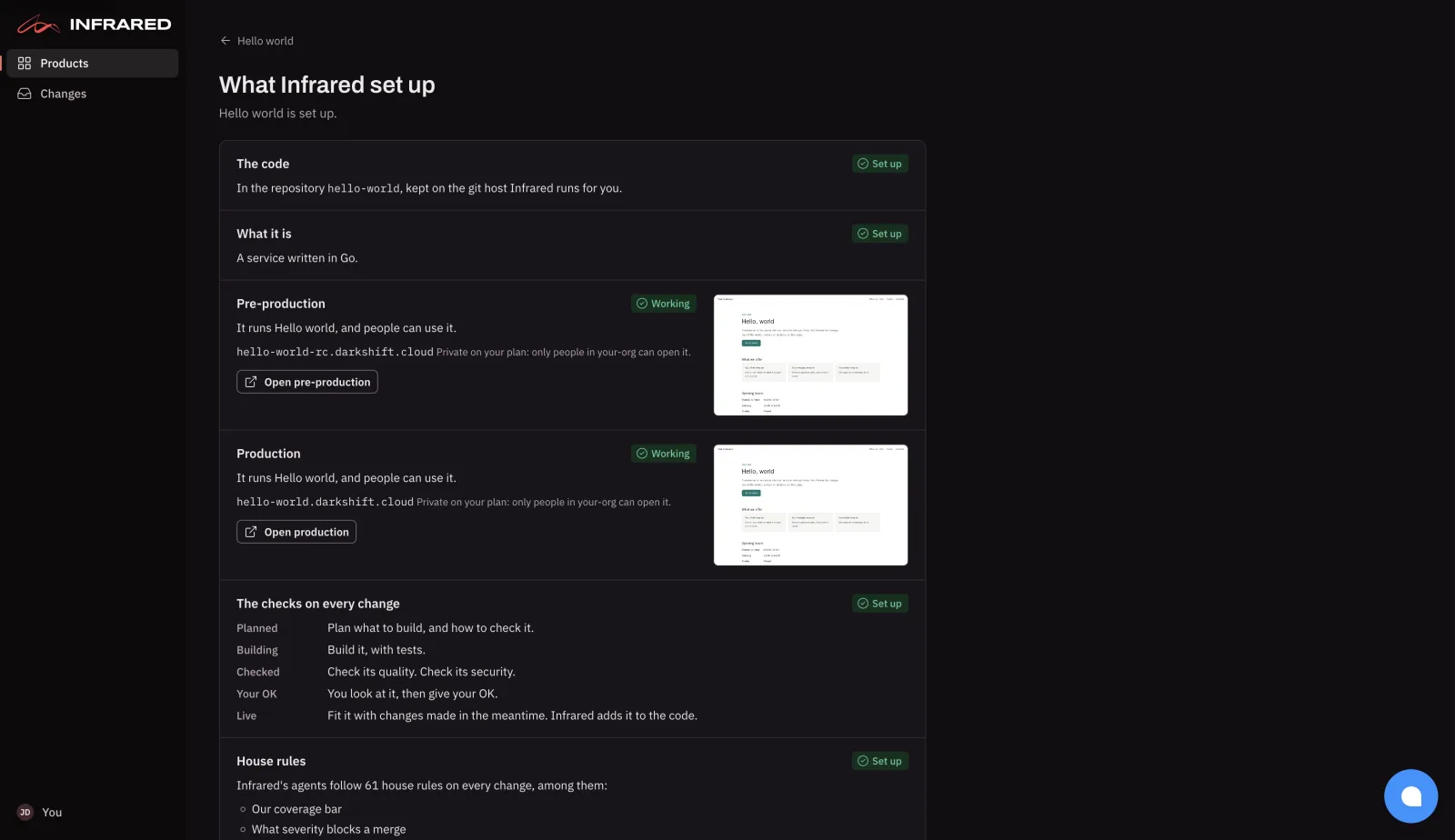
On the private beta, both environments are private: only people in your org can open them, after signing in.
4. Ask for a change
On your app's page, choose Ask for a change.
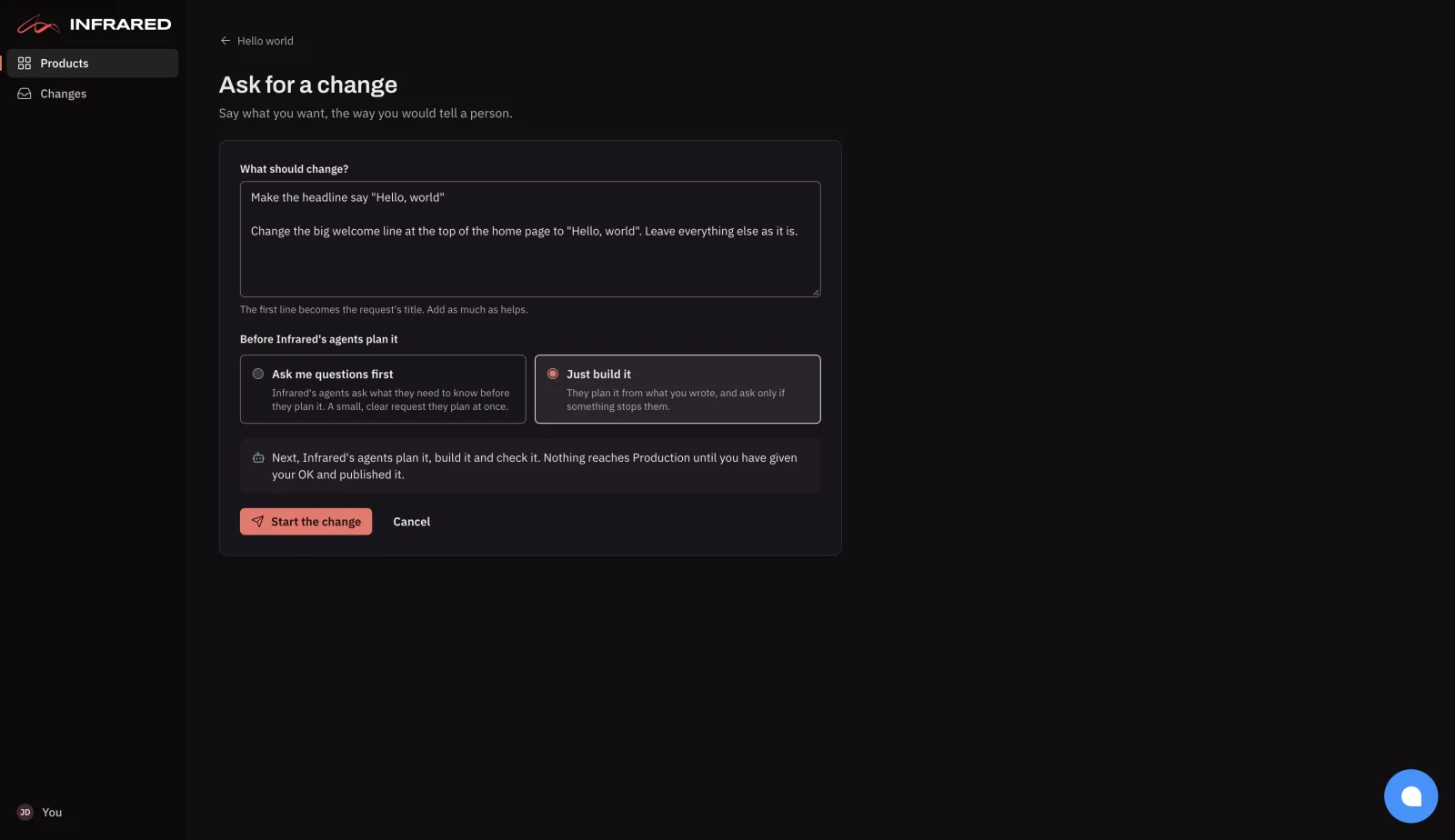
- In What should change?, say what you want, the way you would tell a person. The first line becomes the request's title, for example
Make the headline say "Hello, world". Add as much as helps. - Choose how it starts:
- Ask me questions first: Infrared's agents ask what they need to know before they plan it.
- Just build it: they plan it from what you wrote, and ask only if something stops them. Good for a small, clear request.
- Choose Start the change.
The request's page shows where it stands: Planned, Building, Checked, Your OK, Live, with an estimate of when it will be ready. Nothing reaches your app until you give your OK.
5. Give your OK
When the agents are done, the request says Ready for your OK: what will change, in plain words, and how its checks went.
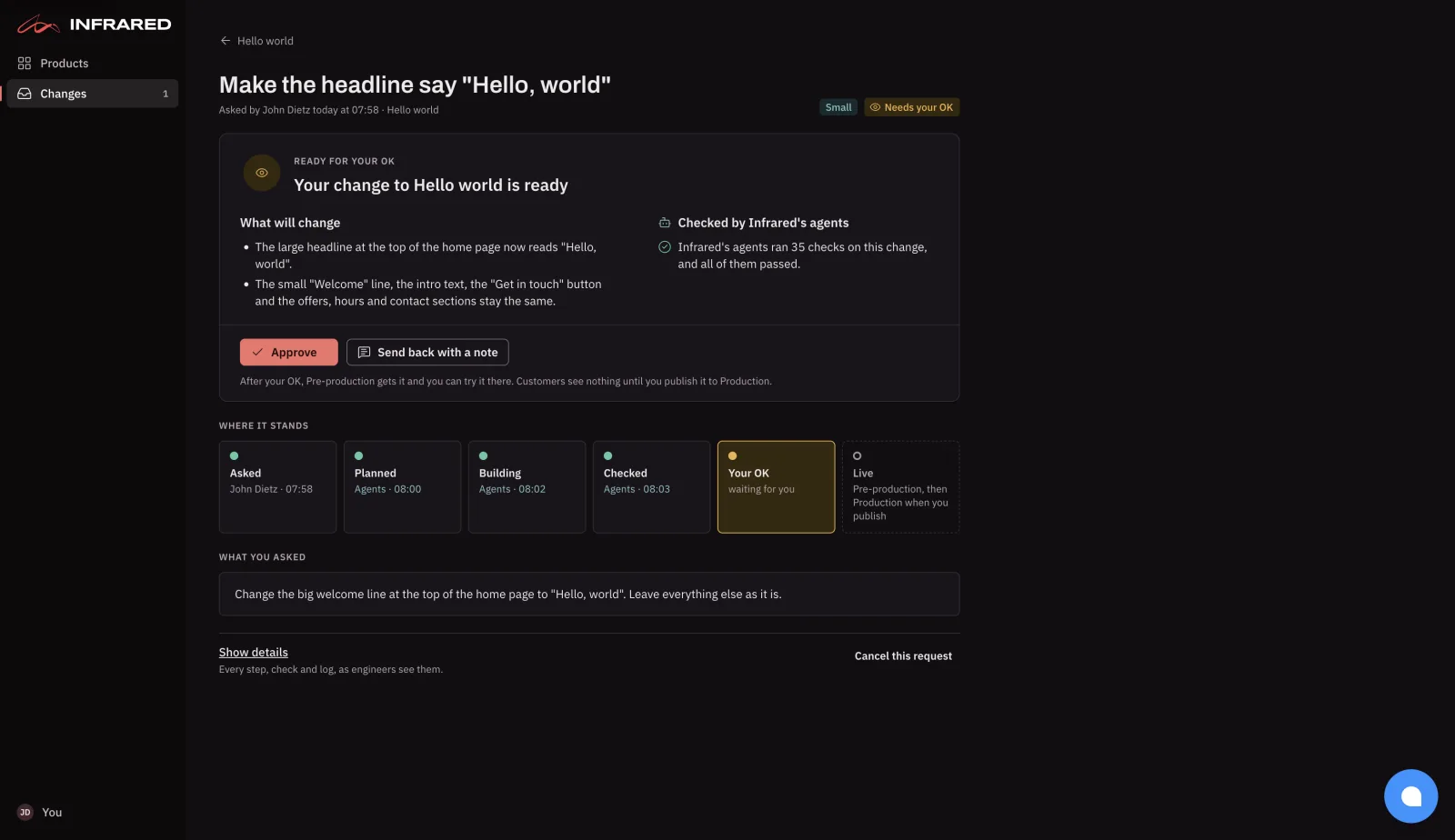
- Approve, and Pre-production gets the change, usually within ten minutes. Try it there.
- Send back with a note if it is not what you wanted, or a check did not pass. Say what to change; the agents build it again and come back for your OK.
Our one-line headline change was ready for an OK seven minutes after it was asked for, with all 35 checks passed, and cost $0.76 of the included work.
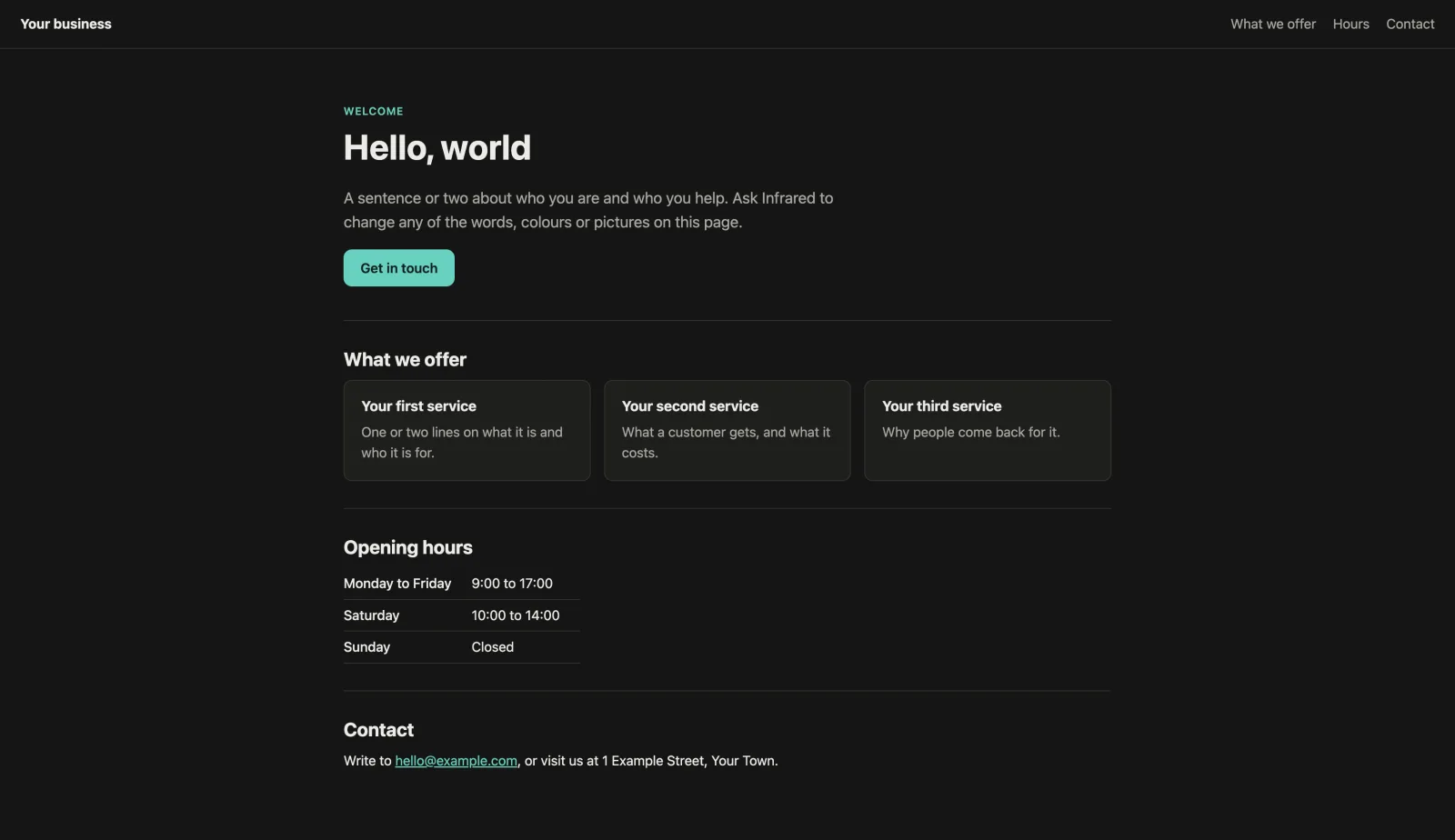
Then, on your app's page, Pre-production is 1 change ahead of Production offers Publish to production. Publish, and your customers see it.
From an idea
Choose Start from an idea in step 2, name it, and say in a sentence who it is for and what they do with it, for example "A page where a family logs the books each child reads, and sees how many each has read this month."
Infrared's agents ask a few questions first, each with their own suggested answer: who uses it, what someone does first, what to show, anything it must never do, and the look you like. Change any answer that is wrong, then choose Send answers.
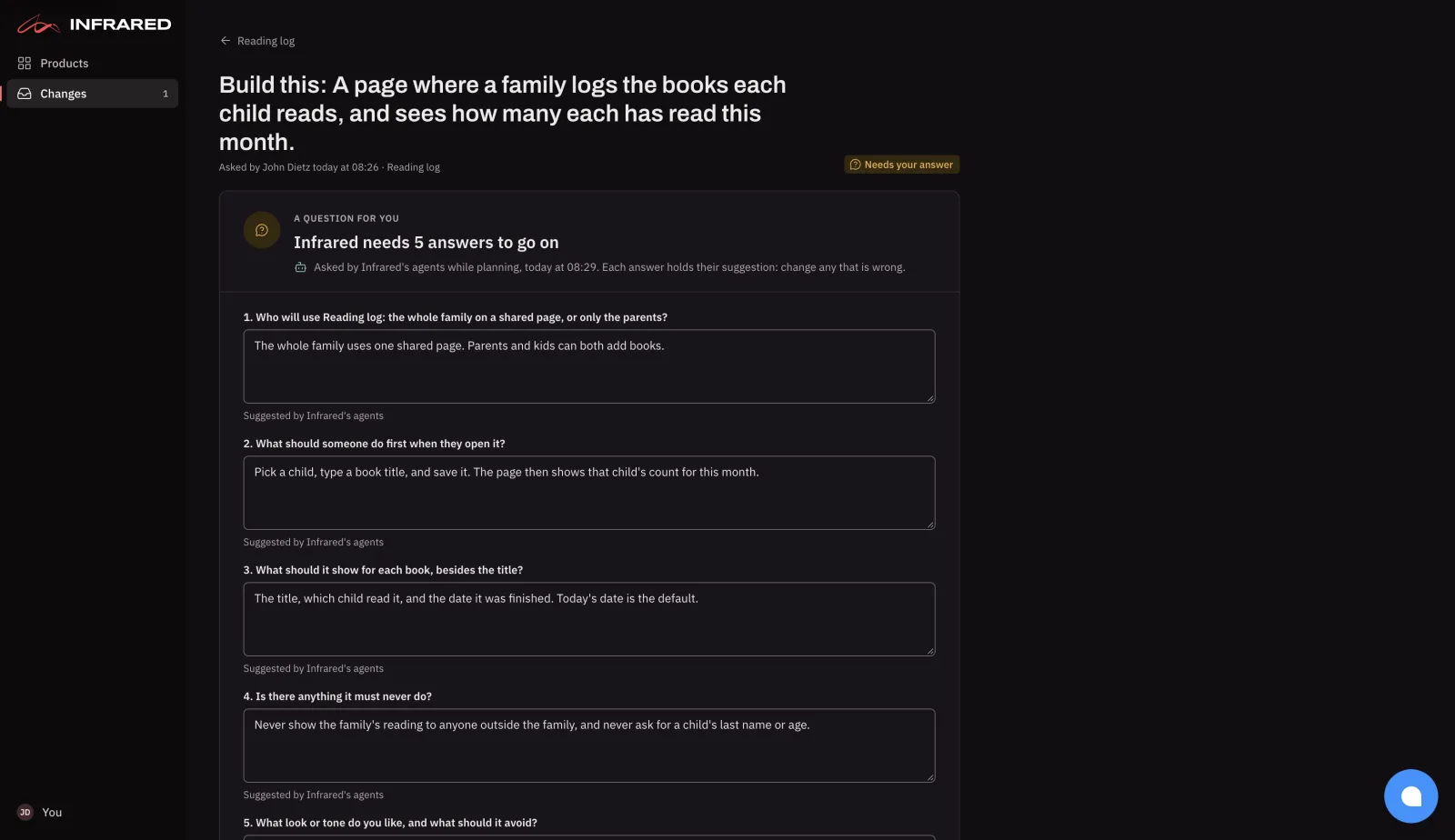
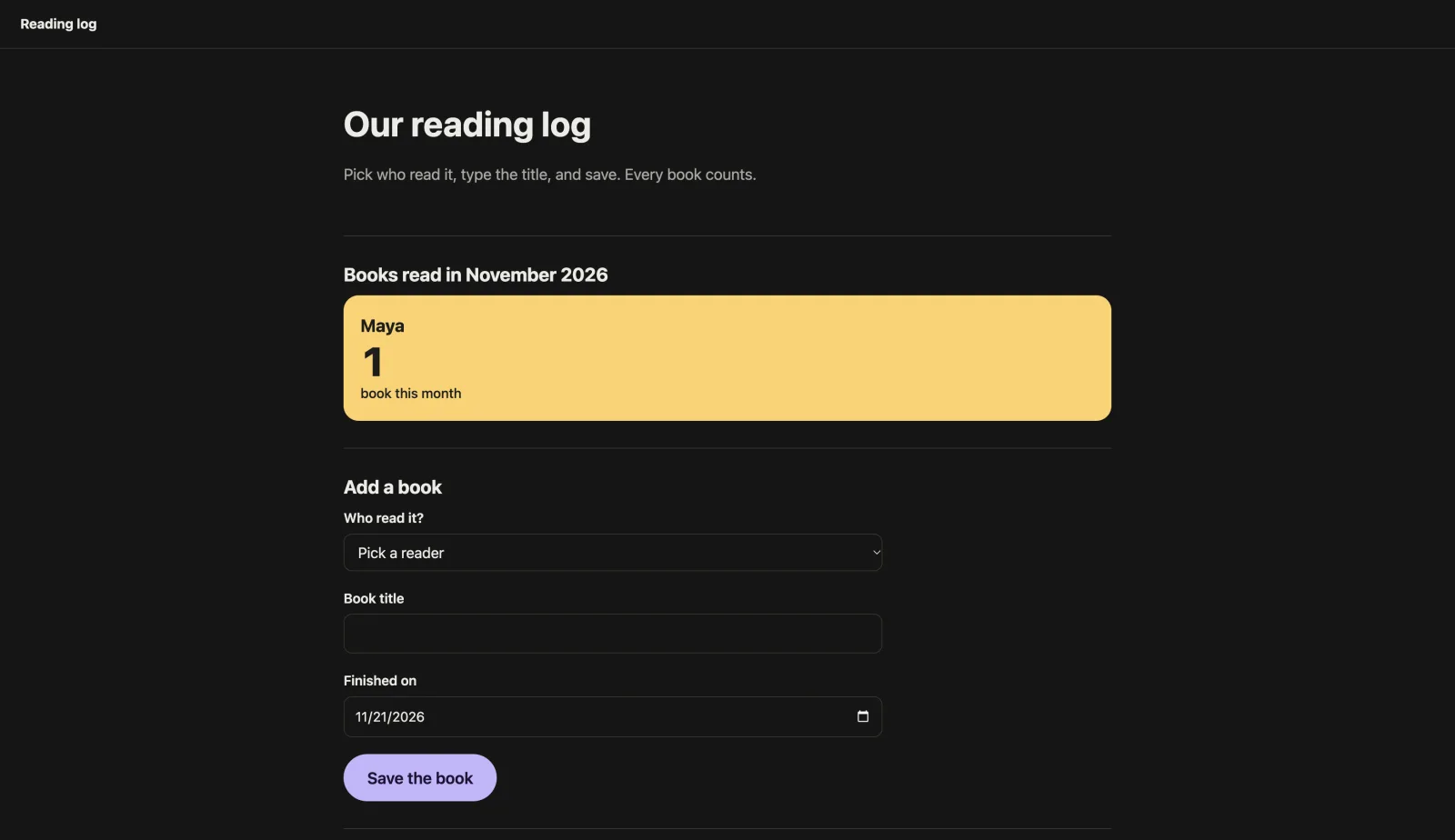
Our reading log was ready for an OK about 17 minutes later, sent back once with a note ("fix the checks that did not pass, and add a limit of 10 children"), and approved seven minutes after that: a working app with its own database, for $4.62 of the included work all told.
If your code is on GitHub
Infrared can work in your GitHub repositories instead of its own git host. It does so through a GitHub App of your org's own, and GitHub only lets that App live in a GitHub organization, not a personal account. A free organization is enough: Infrared uses nothing a paid GitHub plan adds.
- No organization yet? Make a free GitHub organization. If your code is under your own name, transfer each repository to it: on GitHub, the repository's Settings → General → Danger Zone → Transfer. It keeps its history, issues and pull requests, and its old address still leads to it.
- Connect it. In Infrared, open Settings → Git, and in the GitHub row enter the organization's name (as in
github.com/<name>), then choose Connect GitHub. You need to be an owner of the organization. - Create and install the App. GitHub opens with the App ready to create: create it, then install it on the organization, on all repositories or the ones you want Infrared to use. GitHub brings you back to Infrared.
If you give a personal account's name, Infrared says so and stops before anything is made on GitHub. A GitHub organization belongs to one Infrared org.
Your GitHub repositories then show under Connect a repository when you register a Product. See Organizations for the details.
Your plan
On the private beta, an org holds 2 Products and 1 person, and its environments are private. You, in the bottom left, shows what your org may do and what unlocks more.
When the included work runs out
Your org's agents work on Infrared's included agent work, $15 of it, until you set an Anthropic key of your own. Once the included work is used, requests wait for a key.
To set yours, create a key in the Claude Console, then in Infrared go to You, choose Set your own in Settings, paste it under Model provider and save. Infrared checks it with Anthropic before keeping it, and it takes over at once. Give the key a workspace of its own with a monthly spend limit, so you always know the most it can cost.
Getting help
The chat button in the bottom right of every page reaches Darkshift. You can also book a call.