Your first Change
A Change is one request followed from start to finish: you say what should change, agents do the work, and you make the calls that matter. This guide takes you through your first one, from a sentence on a Product's page to the new version running in production. It takes a few minutes of your time, spread over the time the agents work.
In the recording above, a one-line request to change a website's accent colour went to production in about eight minutes, two approvals included. Four agent steps took three and a half minutes between them and cost $1.44.
Before you start
- A Product. A Product is the repos Infrared builds and delivers together. If your org has none yet, choose Create product on Products: pick a repo you already have, or start a new one from a template or a zip and tick Build it and open a preview to get a pre-release environment at a private address. See Products.
- A model key for your org. Agents run on your org's Anthropic API key. An org admin sets it in Settings → Model provider; if it is missing, a banner on every page tells you.
- A role that may ask and approve. Members of an org can ask for changes; who may approve depends on your org's access groups. See Access groups and access.
1. Ask for a change
Open the Product, go to its Changes tab and choose Ask for a change.
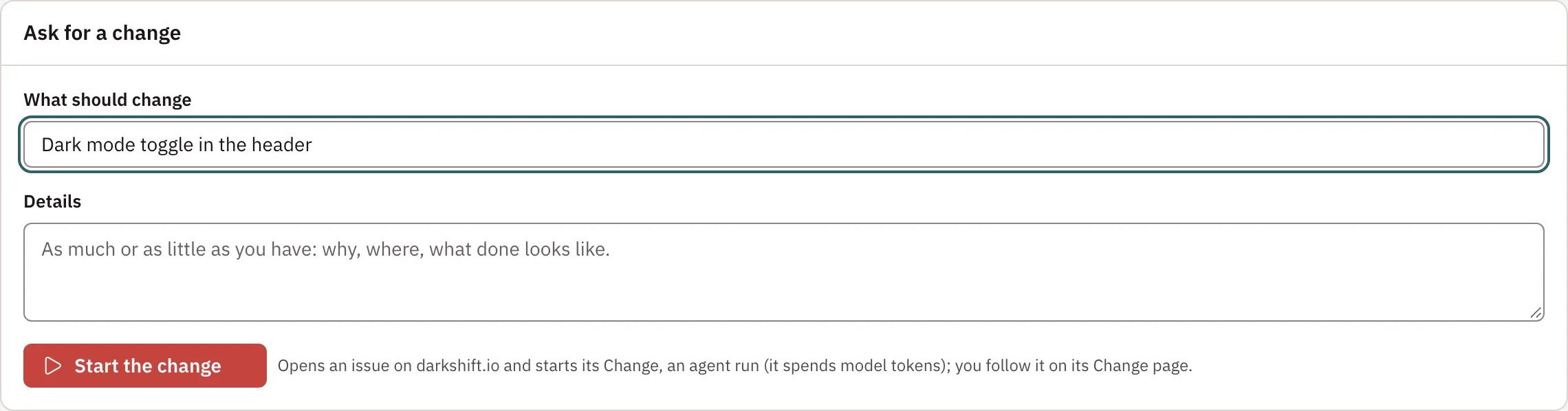
- In What should change, write the request in one sentence, the way you would say it to a colleague, for example "Show the build commit on /version".
- In Details, add as much or as little as you have: why, where, what done looks like. You can leave it empty.
- Choose Start the change.
Infrared opens an issue on the Product's repo, starts its Change and takes you to the Change's page. That page is where you follow everything from now on, and where Infrared asks for you when it needs you.
2. The architect plans it
The first step is the architect. It reads the repo and its history, changes no code, and rewrites the issue with a plan: the problem in a sentence, the files involved, acceptance criteria, design notes, how the result will be verified, and an estimate. This usually takes a minute or two.
Where this change is, the strip of stages near the top of the page, marks Hydrated when the plan is ready. Open the issue to read it. See Plan work in the backlog for what the plan holds.
3. You triage it
Now the Change waits for you. The Triage step shows two choices:
- Build it sends the work to the agents.
- Hand to a person keeps the issue for a human to build, and ends the Change.
The count beside Changes on the rail includes this decision until you make it. Read the plan, and if it is what you meant, choose Build it.
4. Agents build, test and review it
From here the agents work on their own, and you can watch them or go do something else.
- The builder implements the plan on its own branch, adds tests and opens a pull request linked to the issue.
- The QA engineer waits for your CI. Green CI ends its step with no agent at all. If CI fails, it works out whether the code or the test is wrong, fixes a wrong test itself, and sends wrong code back to the builder.
- The quality reviewer checks the tests and the code's correctness, and the security reviewer looks for secrets, malicious edits and known vulnerabilities. Each can fix small things itself or send a finding back to the builder on the same branch.
Each step opens while it runs, with its log live, and closes with its verdict when it finishes.
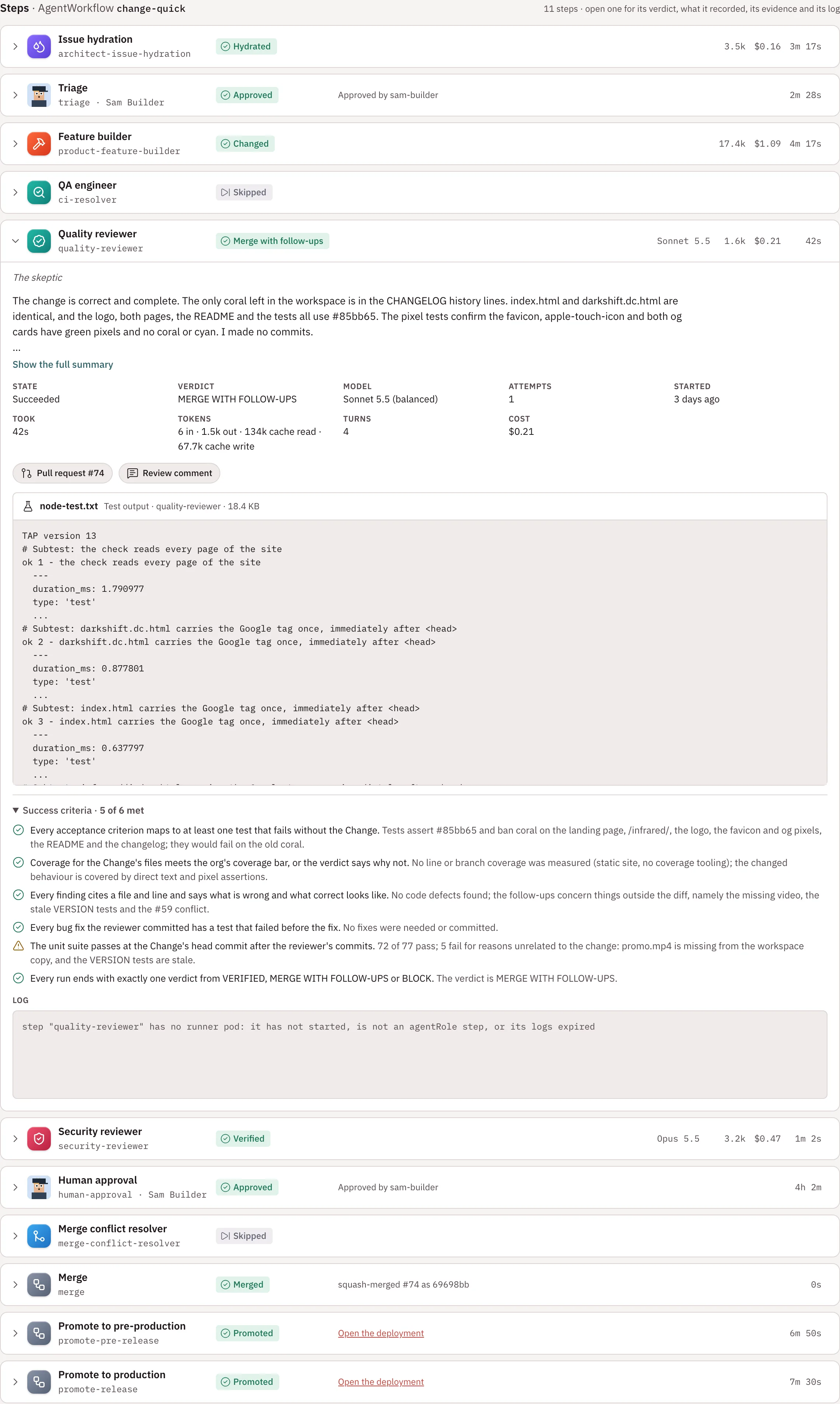
If an agent gets stuck, it stops and asks you instead of guessing. The step says it needs your input, with its questions and suggested answers; answer them and choose Retry with this guidance. See When a step needs a human.
5. You approve the merge
When the reviewers are done, Human approval waits for you, and the page's banner says so. Your approval turns amber in the strip.
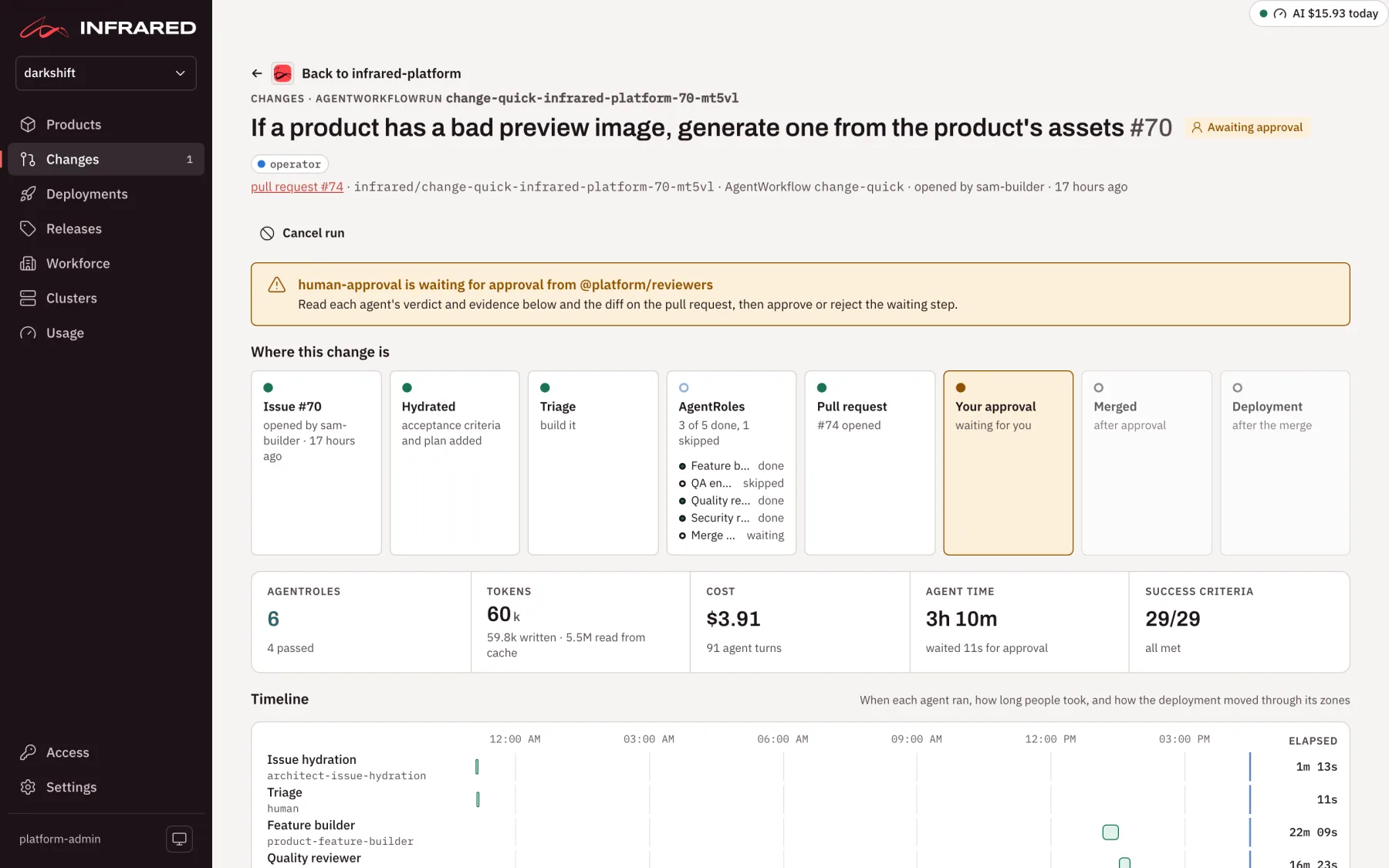
Read each agent's verdict and evidence on the page, then the diff on the pull request. Then:
- Approve records your approval, and Infrared squash-merges the pull request within seconds. If another Change merged first and the pull request no longer merges cleanly, an agent re-applies the change on the new base before the merge.
- Reject fails the run and leaves the pull request open for you to close.
6. Pre-release
The merge starts a deployment. Infrared waits for the build, tags the new version (for example v0.4.0), and promotes it to the Product's pre-release environment with a pull request to your gitops repo. Once the environment is Synced and Healthy and its smoke check passes, Infrared takes a screenshot of it, and the strip shows it.
Open the pre-release address and check the change for yourself. If your Product has no environments yet, the Change ends at the merge.
7. You approve production
Production waits for a person. The deployment's page opens with Waiting for approval to promote to your production environment, and a button that says exactly what it does: Approve: promote the version to that environment. Choose it once you are happy with pre-release.
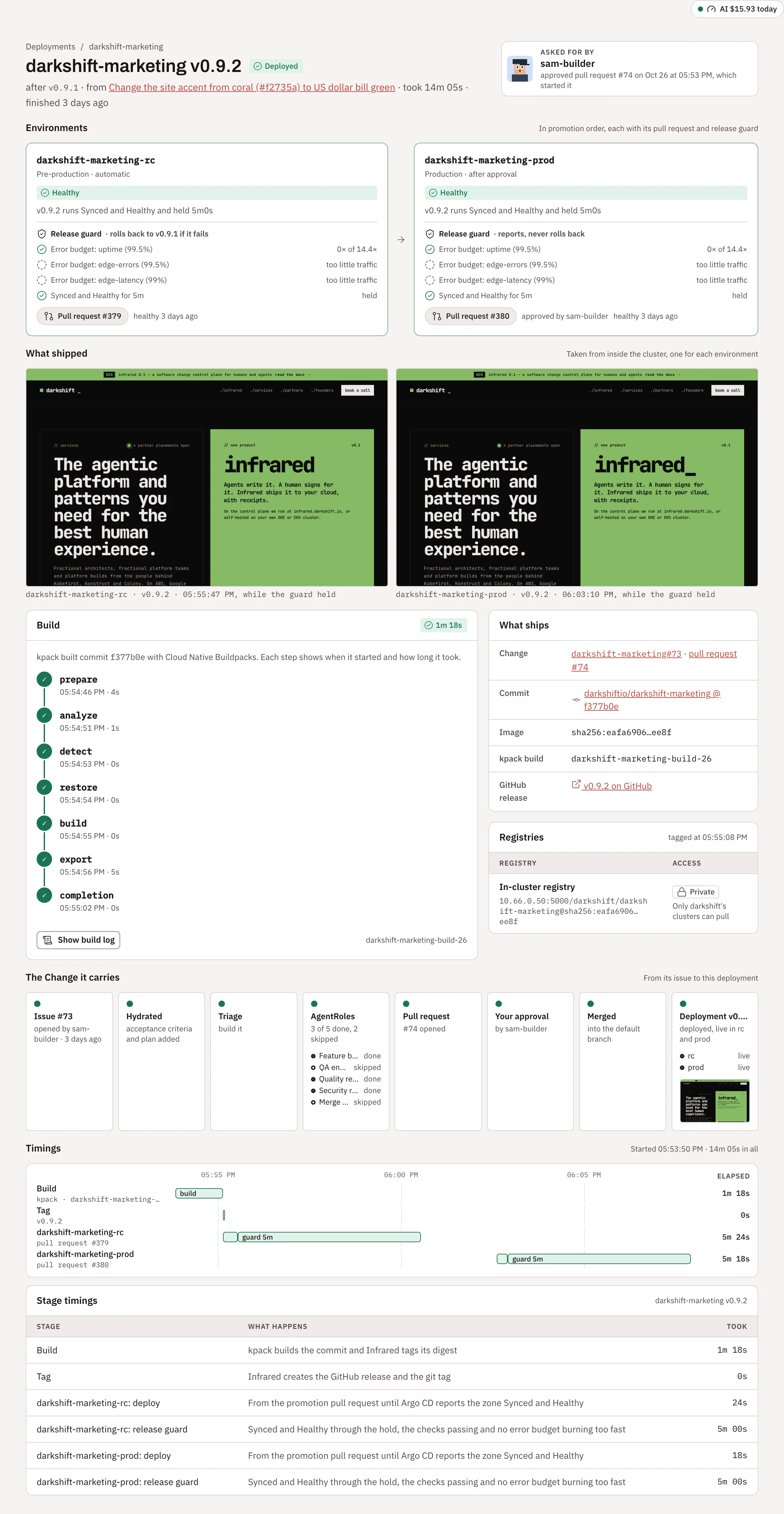
Infrared promotes the same build it tested, with another pull request to the gitops repo, and watches production under the release guard. If production fails its checks, Infrared rolls it back. See Deployments.
8. Done
When production is Healthy, every stage in Where this change is is green, ending with the deployment and the environments it runs in. If your org has summary videos on, a short narrated video of the Change appears at the top of its page. See Summary videos.
The Change's page stays as its record: what was asked, every step's verdict, evidence and cost, who approved what, and what shipped where. See Follow a change.
Ship without the approvals
For a Product that should ship on its own, an org admin can turn human approvals off on the Product's page. The same request then goes from Start the change to production with no one clicking: the agents build what the architect planned, the merge follows the reviewers, and production follows a Healthy pre-release. A reviewer's BLOCK, a failed step or a step that stops to ask still waits for a person. See Turn human approvals off.
Next
- Built for the person in charge: every place the app tells you what waits for you and helps you decide.
- Run a Change: the AgentWorkflow step by step, and what to do when a step stops.
- Cut a release: gather what reached production under one version, with notes and a post.