Sign-in
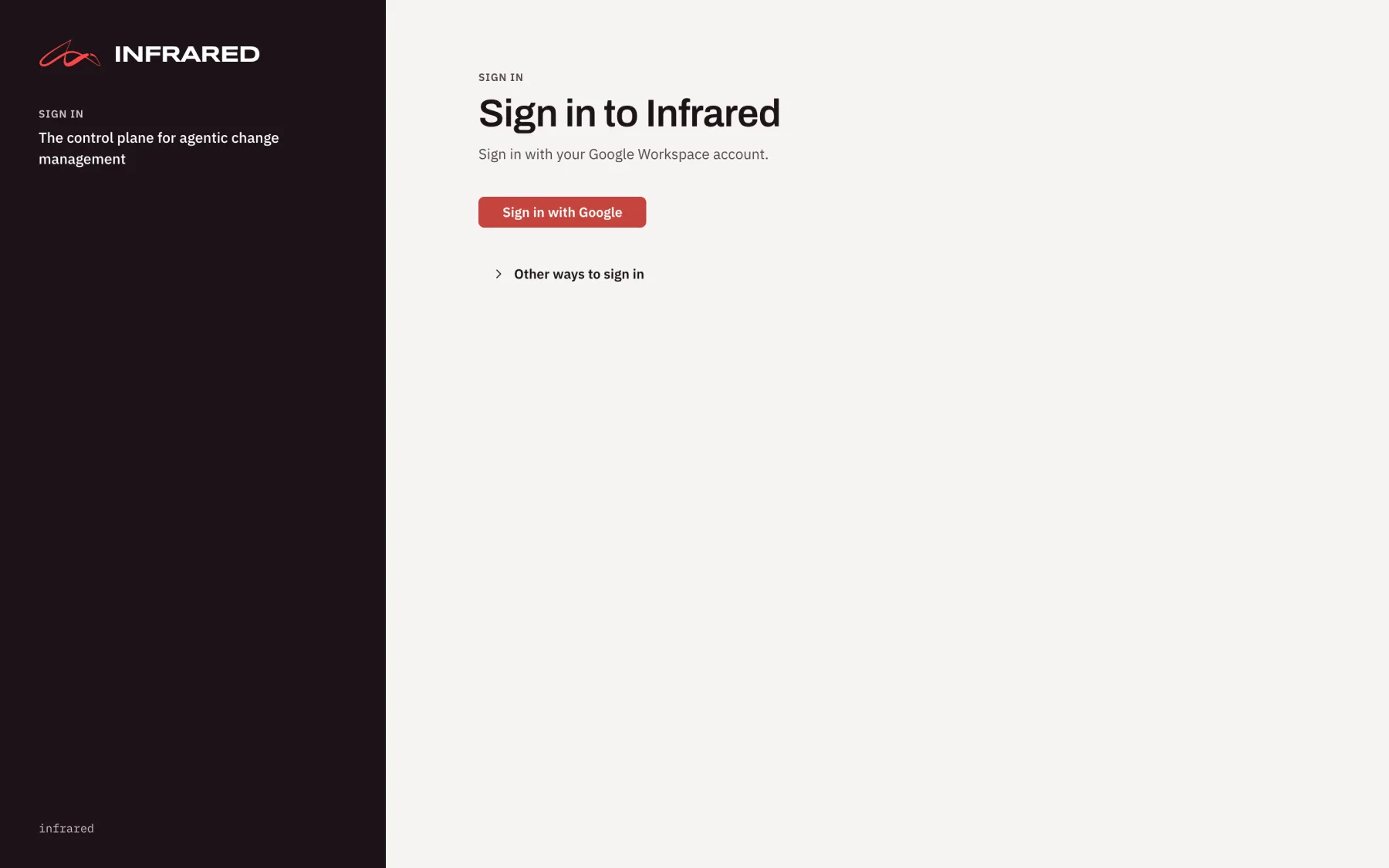
People sign in to Infrared with their Google account. You give Infrared a Google OAuth client and choose which Google Workspace domains may sign in, and from then on your people sign in with the account they already use every day. People who have no Google Workspace account can sign in with GitHub, and the root user's email and password wait behind Other ways to sign in as break glass.
What a person can do once they're in comes from access groups.
Sign in with Google
Infrared runs Google's OpenID Connect sign-in itself. It accepts a sign-in only when Google says the email address is verified, and when both the Google Workspace domain the account belongs to and the domain of its address are on your list of allowed domains. A personal Google account belongs to no Workspace domain, so it never signs in, unless the install lets anyone sign up.
At a person's first sign-in, Infrared makes an Infrared user for them, named after their Google account's stable ID (google-<subject>), and keeps their address and name up to date each time they sign in. That user holds the git accounts they link.
Once Sign in with Google is set up, the sign-in page leads with Sign in with Google, and Other ways to sign in holds Sign in with GitHub and the root user's form.
Set up Sign in with Google
You need someone who can create an OAuth client in a Google Cloud project of your Google Workspace's organization.
-
Give Infrared an HTTPS address. Google sends the browser back to Infrared, and it accepts only
https://redirect addresses on a domain name, apart fromlocalhost. See Expose Infrared over HTTPS. -
Make an OAuth client. In the Google Cloud console, open Google Auth Platform in a project that belongs to your Google Workspace's organization.
-
On Audience, choose Internal. Google then offers the client only to your own Workspace's accounts. (Choose External only if the install lets anyone sign up.)
-
On Branding, set the app name people see on Google's account chooser.
-
On Clients, choose Create client with the application type Web application. Leave Authorized JavaScript origins empty. Under Authorized redirect URIs, add one for each address people open Infrared at:
https://<host>/api/v1/auth/google/callbackThe Sign-in panel in Settings shows the exact address for the address you opened it at, with a Copy button. If people reach Infrared at two addresses, such as a public one and one over a private network, list both.
-
Choose Create, then download the client's JSON. It holds the client ID and the client secret.
Infrared asks Google for
openid,emailandprofileonly. -
-
Give the client to Infrared. The client belongs to the install's configuration, not to a setting in the UI. It lives in the Secret
infrared-platform-tokensin Infrared's namespace (infraredby convention), keysgoogle-client-idandgoogle-client-secret. Never put the secret in the gitops repo. The API reads the keys at every sign-in, so setting or rotating them needs no restart.At install, add the two chart values to the
helm installin Install on GKE. Pass the secret from a file so it stays out of your shell history:--set platformTokens.googleClientId=<client ID> \--set-file platformTokens.googleClientSecret=<file holding the client secret>On a running install, patch both keys into the Secret straight from the downloaded JSON, so the secret never appears on a command line:
jq '{data: {"google-client-id": (.web.client_id | @base64), "google-client-secret": (.web.client_secret | @base64)}}' client_secret.json \| kubectl --context <cluster> -n infrared patch secret infrared-platform-tokens --type merge --patch-file /dev/stdinIf the Secret doesn't exist yet, create it from the same file:
jq '{apiVersion: "v1", kind: "Secret", metadata: {name: "infrared-platform-tokens"}, data: {"google-client-id": (.web.client_id | @base64), "google-client-secret": (.web.client_secret | @base64)}}' client_secret.json \| kubectl --context <cluster> -n infrared create -f -Keep the secret where you keep your other credentials, then delete the download. The Sign-in panel now shows the Client ID, and Client secret says Set.
-
Allow your domains. Signed in as the root user, open Settings on the platform org. In the Sign-in panel, enter each domain whose people may sign in under Allowed domains, such as
example.com, and choose Save sign-in settings. The sign-in page offers Sign in with Google as soon as the client ID, its secret and at least one allowed domain are set. -
Sign in. In a private window, open Infrared, choose Sign in with Google, and pick an account of an allowed domain. You land on Products. The Sign-in panel now says Verified, with when and by whom. Sign in once at each address the client lists.
Until you map access groups to Workspace groups, everyone who signs in from an allowed domain is a platform admin. Map the platform org's platform-admin access group next: see Before Workspace groups give roles.
If you set the chart value externalURL, Infrared uses that one address for every sign-in, and the client needs only its redirect address.
When a sign-in is refused
A refused sign-in returns to the sign-in page, which says why under Sign-in didn't work:
| What happened | What the person reads |
|---|---|
| A personal Google account | "Only Google Workspace accounts can sign in here: choose your work account." |
| An account of a domain that isn't allowed | "Google accounts of <domain> can't sign in to this install: a platform admin allows domains in Settings, Sign-in." |
| An address Google hasn't verified | "Your Google account's email address isn't verified: verify it with Google, then sign in again." |
| An account Google Workspace reports suspended | "Your Google account is suspended: ask a Google Workspace admin." |
| The sign-in finished in another browser, or more than 10 minutes after it started | "The sign-in link expired or was opened in another browser: start again." |
| The sign-in started at one address and came back to another | "The sign-in started at another address: start again from this page." |
| Google refused the install's client, such as after its secret was deleted | "Google refused this install's OAuth client: a platform admin checks keys google-client-id and google-client-secret of the Secret infrared-platform-tokens. Password sign-in works until a Google sign-in does." |
Google stops some sign-ins itself before they reach Infrared: an account outside your Workspace on an Internal client (org_internal), and an address whose redirect address the client doesn't list (redirect_uri_mismatch).
Allowed domains
In the Sign-in panel of Settings on the platform org, Allowed domains lists the Google Workspace domains whose people may sign in, one per line or separated by commas.
- A sign-in needs both the account's Workspace domain and the domain of its address on the list.
- You can list up to 20 domains. Each is a lowercase name with at least one dot and no wildcard, such as
example.com. gmail.comandgooglemail.comare refused: personal accounts belong to no Workspace domain.- Removing a domain signs its people out at their next request. Infrared checks a session's domain on every request, not only at sign-in.
- While signed in with Google, you can't remove your own domain ("That would sign you out"). Sign in another way to remove it.
- An empty list turns Sign in with Google off, unless sign-up is on.
- A Workspace group an access group maps to, and the break-glass holders group, must be in an allowed domain too.
Changing the list needs a platform admin signed in with Google or as the root user. A platform admin signed in with GitHub sees it read-only. Through the API, PUT /v1/auth/settings/google with {"allowedDomains": ["example.com"]} changes it from such a session, and GET /v1/auth/settings reads it.
The same list is spec.signIn.google.allowedDomains on the Installation, so you can also set it with kubectl. The API rereads the Installation and the Secret infrared-platform-tokens at least every 15 seconds.
Let anyone sign up
An install can let anyone with a Google account sign up, as a hosted install does. Turn on Anyone with a Google account may sign up in the Sign-in panel, set the limits below it, and choose Save sign-in settings. Sign-up needs the install's own Gitea, since each new org keeps its repos there.
With sign-up on:
- Anyone with a verified Google account signs in, whatever its domain, personal accounts included. The allowed domains keep their meaning for your own people.
- A person whose first sign-in finds no role for them anywhere gets an org of their own on the install's Gitea, ready for Products. They hold
org-adminin it through an access groupowners, by their email address. The org switcher shows it to them as default. - Their first sign-in lands on Welcome, which asks for the org's Anthropic API key, since every agent run in that org spends on it. They can Skip for now and add it later in Settings.
- Someone you already invited by email, or who is in a mapped Workspace group, gets no new org: they sign in to the orgs that list them.
- When the install's license allows no more orgs, the sign-in is refused with "Sign-up is closed on this install", and nothing is made.
Each org made at sign-up takes the limits you set beside the switch:
| Setting | What it limits |
|---|---|
| Products per new org | How many Products the org may hold. 0 means no limit. |
| People per new org | How many people the org may name, besides any number of agents. 1 is the owner alone, and 0 means no limit. |
| New Teams per new org | How many Teams the org may make beyond the default ones. Empty means no limit, and 0 means the default Teams alone. |
| New orgs may make an environment public | Off, the org's environments stay behind Infrared sign-in, so nobody can serve a public site from your install's preview domain. |
The limits apply to orgs made from then on. An org keeps them in spec.limits on its Organization, where a platform admin can raise them. Limits never bind a platform admin.
Turning sign-up off ends the sessions of people with personal accounts at their next request. Their orgs stay.
Rotate the client's secret
In Google Auth Platform, open the client, add a new secret beside the current one and download it. Put it in key google-client-secret of infrared-platform-tokens as in step 3, sign in with Google in a private window, and only then disable and delete the old secret in Google. If you delete the old secret first, Google refuses the client, and password sign-in comes back on until a Google sign-in works again.
Sign in with GitHub
People without a Google Workspace account, such as a contractor or another company's people, sign in with GitHub. Sign-in uses the platform org's GitHub App, the one the setup wizard made, as an OAuth client. They choose Sign in with GitHub under Other ways to sign in, GitHub asks them to authorize the App, and Infrared reads their GitHub login.
Only a login on some access group gets a session. Anyone else returns to the sign-in page with "<login> is not on any team: ask an org admin to add you". A login that someone who signs in with Google has linked is refused too: a linked GitHub login is for git, not for signing in (What a linked GitHub login does).
An install whose platform org lives on Gitea alone has no GitHub App, so it has no Sign in with GitHub.
Set up Sign in with GitHub
-
Give Infrared a public address. See Expose Infrared over HTTPS. GitHub sends the browser back to it.
-
Add the callback address to the App. The GitHub App panel in Settings shows the exact Callback URL with a Copy button, and Edit on GitHub opens the App's settings. On the General tab, under Identifying and authorizing users, add the address and choose Save changes:
https://<host>/api/v1/auth/github/callbackThe setup wizard puts this address in the App for you when you run it at a public address. Run at a private address, such as through a port-forward, the App gets none and you add it here.
-
Check the App's OAuth client. In the GitHub App panel, Sign in with GitHub reads OAuth client stored when it's in place. The setup wizard keeps the App's client ID and client secret in the Secret
github-app(keysclient-idandclient-secret) in the platform org's namespace,ir-org-<platform org>. If you generate a new client secret on GitHub, write it to that key. -
Put people's logins on access groups. A new install has no access groups, so nobody can sign in with GitHub yet. Sign in as the root user, or with Google, open Workforce → Access groups in the org each person works in, and add their login under GitHub logins.
If something is missing, the sign-in says so:
- "the platform org's GitHub App has no OAuth client": the Secret lacks one of the two keys in step 3.
- GitHub says the redirect address isn't associated with the App: step 2 is missing, or the host differs.
- "
<login>is not on any team": step 4 is missing for that login.
Sign in with GitHub needs only the callback address. The App's webhook is separate: it lets issues and pull requests start AgentWorkflows (Connect the webhook).
Sessions
A session lasts 12 hours, however it was opened. Over HTTPS it's the __Host-ir_session cookie, which only this host can set; over plain HTTP, such as through a port-forward, it's ir_session. Infrared records what you do under your Google address, your GitHub login, or the root user.
Someone sent to sign in from a page that needs a session returns to that page afterwards.
A session opened with GitHub can't mint API tokens or link accounts, reads Access without changing it, and sees the license on Settings without the field to install one.
Password sign-in limits
The root user's email and password sign-in is rate limited for each client:
| Limit | What happens |
|---|---|
| 5 failed attempts in a minute from one client | Further attempts from that client get HTTP 429 until the minute passes. |
| 10 failed attempts from one client within 15 minutes | That client is locked out for 15 minutes. |
There's no limit across clients, so a stranger can't lock the root user out. At most 4 password checks run at once, so a flood of guesses can't tie up the API: a request that has waited 5 seconds gets HTTP 429, "Infrared is busy checking other passwords: try again in a few seconds". That is never a lockout. A successful sign-in clears the client's failures.
Failed Google sign-ins count the same way, in counters of their own. Past a limit, the browser returns to the sign-in page with how long to wait.
A client is the address in the header the chart value api.clientAddressHeader names, such as CF-Connecting-IP behind Cloudflare. Without one, it's the first X-Forwarded-For address, or the connection's own address. Name a header only when the proxy in front of Infrared sets it on every request, and make sure your ingress sets X-Forwarded-For itself rather than passing on what a client sent.