Built for the person in charge
Agents do most of the work in Infrared: they plan, build, test, review and verify. You stay in charge of what changes and what ships. The app is built around that job. It tells you what waits for you, gives you the evidence to decide in a minute rather than an hour, asks you before anything irreversible, and keeps you from having to chase work that is moving on its own.
This page walks through the places in the app that are there for you, and links to the page that explains each one.
What waits for you
You should never have to go looking for a decision.
- The count on the rail. The number beside Changes counts everything waiting on a person: a Change waiting for your approval, an agent that stopped to ask you something, and a deployment waiting for approval to go further. The number beside Deployments counts the versions on their way. See Follow a change.
- Waiting for you on Changes. The Changes page has a line that says how many things wait for you, or that nothing does. Show only these narrows the list to them, each with the action it needs, such as Approve. See Follow a change.
- The cards on Products. Each Product's card says what needs attention: a deployment awaiting approval or failed, Changes awaiting approval, open incidents. See Products.
- One button where you land. When a Change or a deployment waits for you, its page opens with a banner that says what it waits for, and the button to act is right there.
The evidence you decide from
A Change's page is built so you can approve from proof, not from a diff alone. See Follow a change.
- Where this change is is a strip of stages, from the issue to the deployment, so you see at a glance how far it got and what comes next. Once the deployment is in pre-release, the strip shows a screenshot of it running there.
- The run's figures say how many AgentRoles passed, the tokens they used, the cost, the agent time, how long the Change waited for a person, and how many success criteria were met.
- Steps has a record for each step. Each one leads with its verdict, then what it recorded, its evidence (screenshots, test output, checks) and its log. A step that waits for you or stops opens by itself.
- Plain words. States read as people say them: Verified, Awaiting approval, Dead-lettered, Failed. When Infrared's own step stops, the page says what happened, what is already done and what fits next, for example "Nothing is broken; it just went no further."
Decisions that stay with you
Some steps are yours by design. Agents never take them for you.
- Triage. After the architect plans a request, you read the plan and choose Build it to send it to the agents, or Hand to a person to keep it for a human. See Run a Change.
- Approve the merge. When the agents finish, the Human approval step waits for you with Approve and Reject. The banner says what to read first: each agent's verdict and evidence, then the diff on the pull request. Rejecting fails the run and leaves the pull request open for you to close. See Run a Change.
- Approve production. A deployment runs in pre-release first. Production waits until someone chooses Approve: promote on the deployment's page, which asks you to check it in pre-release first. See Deployments.
By default, nothing merges and nothing reaches production without a person. An org admin can turn human approvals off for a Product that should ship on its own; Infrared asks them to confirm, and the Product's page then says so plainly. Even then, a reviewer's BLOCK, a failed step or a step that stopped to ask still waits for a person.
When an agent gets stuck
An agent that cannot go on stops and asks, instead of guessing. You can rescue the run from its page. See Run a Change.
- It asks you. The step shows needs your input, with the agent's questions and, where it has them, its suggested answers already filled in. Accept, edit or clear each one, add anything else it should know, and choose Retry with this guidance. Retry without guidance runs it again as it was, and Cancel run ends it. Earlier guidance stays listed on the step, with who gave it and when.
- Infrared's own step stops. When a merge or a promotion cannot finish, the page explains it in plain words, links to the environments and the deployment, and offers Retry once you have fixed the cause, or Stop here to leave the Change where it is.
- A failed step has Retry on its record.
Stories you can watch
When summary videos are on for your org, you can catch up on work without reading every record. See Summary videos.
- The summary video of each Change. A short narrated video at the top of a Change's page, made when the Change finishes or stops and needs a person: what was asked, what each step did, and where it runs now.
- The weekly video. The top of Products is the week in review: the week's story, the figures against the week before, the people behind it, and the weekly video, made each Monday morning. Make it asks for one now. See Products.
- Slack, where it helps. An org can send each summary video and product owner announcement to the Slack channels it chooses, playing inline. See Slack.
Costs in plain sight
Agents spend money, so Infrared shows what they spend before and after.
- Ask for a change says that starting one spends model tokens.
- Every Change's page shows its tokens and cost, and each step's record shows its own.
- The AI usage chip at the top right of every page shows your org's spend today, and Usage shows it over time against each limit. See Usage and limits.
- When agent runs stop because your org's model key is out of credit or rejected, a banner on every page says so, and what to do. See Models and costs.
Nudges, not chores
- Time for a release. A Product's Releases tab tells you when there is enough in production to be worth a release, and drafts it for you. See Cut a release.
- A new version of Infrared. A banner tells you when one is available. Upgrades are pull requests in your gitops repo. See Upgrades.
Your own page
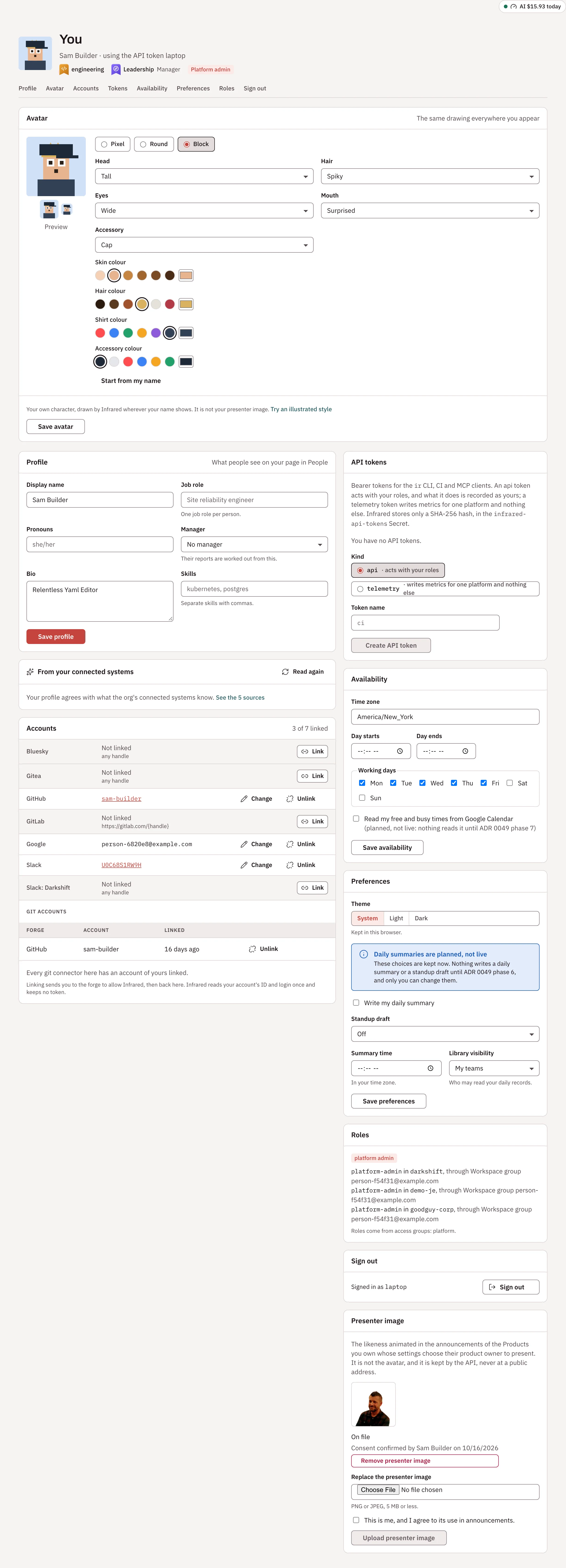
Your name at the foot of the rail opens You: your profile and avatar, the git accounts you linked, your API tokens, when you are available (time zone, working hours and days), your theme, your roles and Sign out. Your avatar is the same drawing everywhere you appear in the app. See Workforce.