Environments and instances
Each Product runs in a few environments, in promotion order: a pre-production zone (<product>-rc) and a production zone (<product>-prod). Each one is an instance of the app with its own address, settings and data.
On the Product page
The Environments section at the top of a Product's page shows one tile per environment, in promotion order:
- Production or Pre-production as the title (it links to the environment's page), the zone, the cluster when the zone runs on a workload cluster, and Argo CD's health.
- A preview: the screenshot Infrared took after the zone's last Release. Click it to open the site.
- The address and who can open it: Sign-in, Public, or Inside the cluster for a zone with no address.
- Version (linked to its Release), when it was Deployed and how (automatically, or by the person who approved the promotion), and From: the Change it came from and who started it, or a Release started by hand.
- Runtime: Argo CD sync and health and ready pods; the last Smoke check (or none set); open Incidents.
- Config: the zone's
values.yamland Argo CD Application in the gitops repo. - Next: a newer version on its way, with a link to approve it.
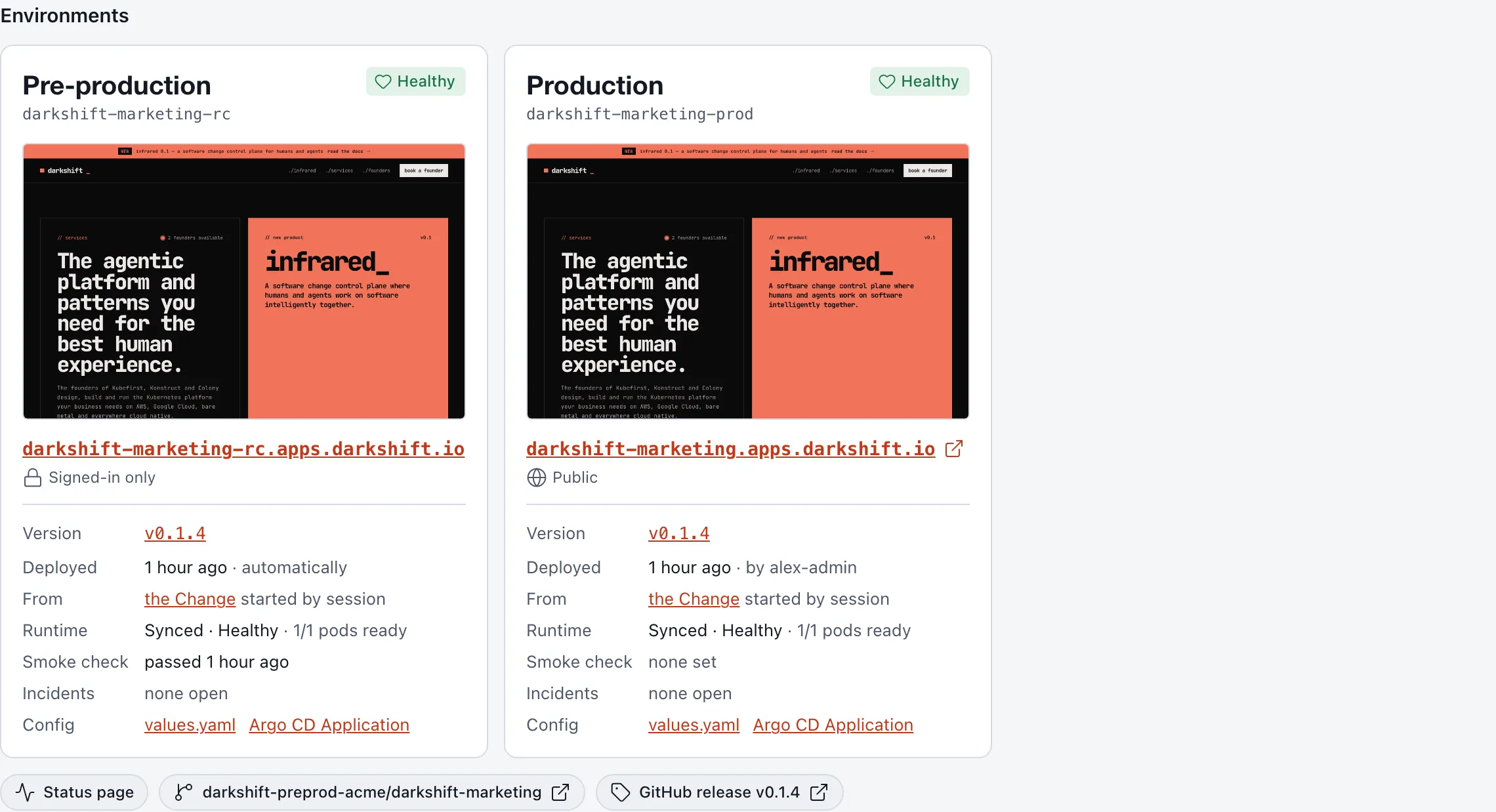
Under the tiles are links to the Product's status page, its repos and its latest GitHub release.
An environment's page
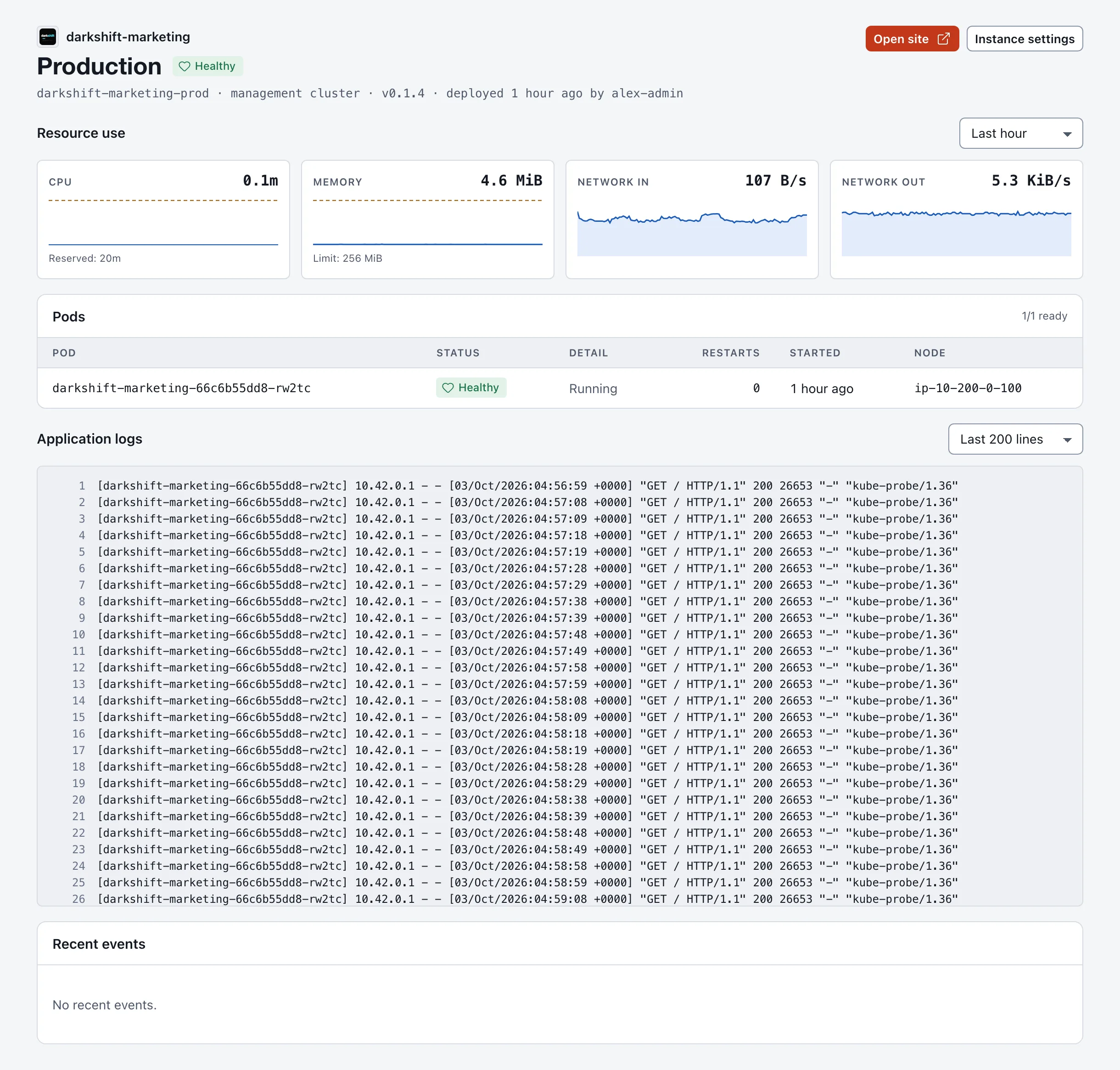
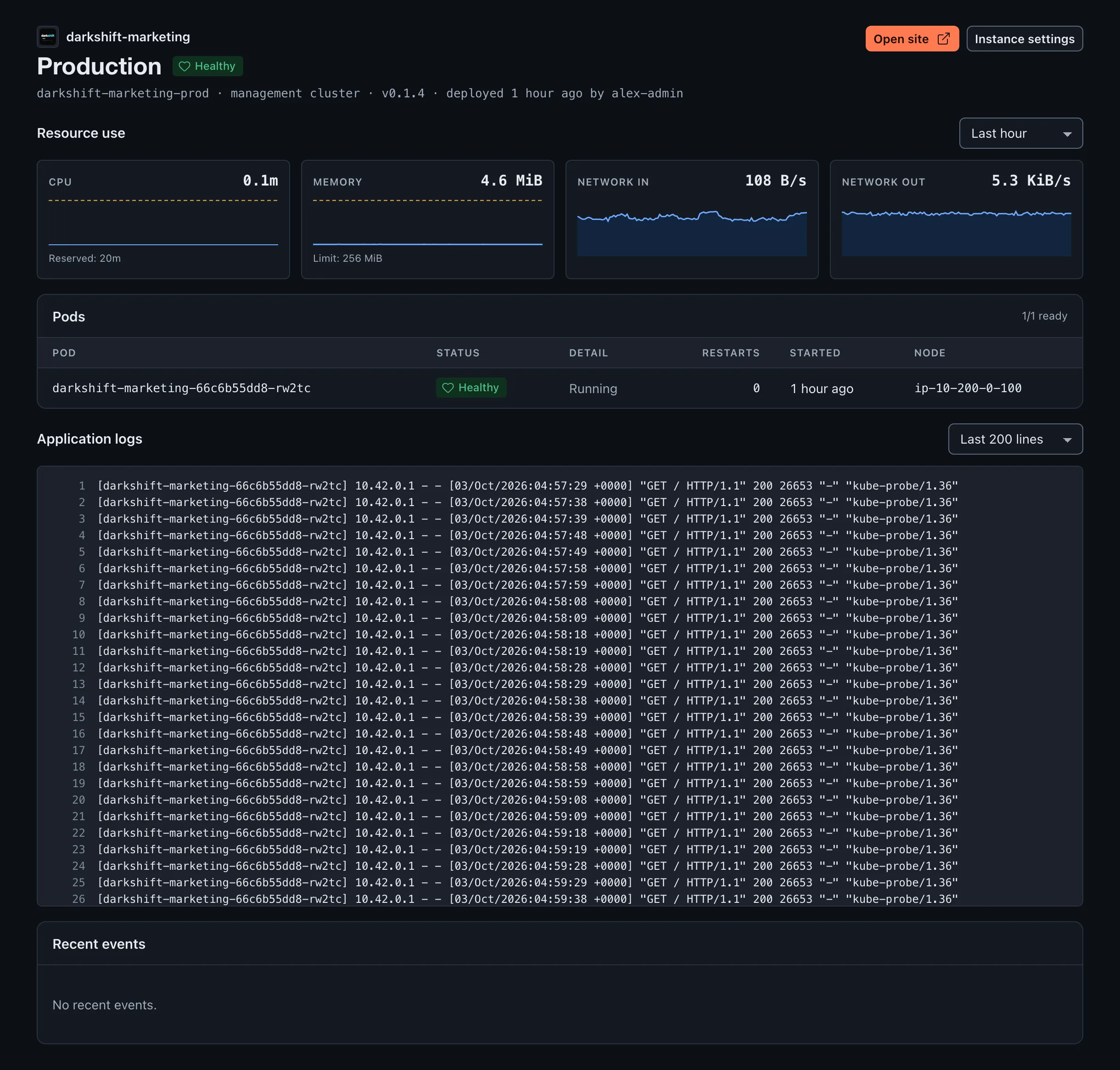
Click an environment's title to open it. Open site opens its address and Instance settings goes to its settings.
| Section | What it shows |
|---|---|
| Resource use | CPU, memory, network in and network out of the zone's pods over the last hour, 6 hours, 24 hours or 7 days (from VictoriaMetrics), with the CPU each pod reserves and its memory limit as a line |
| Pods | Each pod's status, why it isn't running (for example CrashLoopBackOff), restarts, start time and node |
| Storage | Each persistent volume, its claim, status and size (only when the zone has volumes) |
| Application logs | The last 100, 200 or 1,000 log lines of each pod, refreshed every 10 seconds |
| Recent events | The zone's Kubernetes events, with warnings marked |
Instance settings
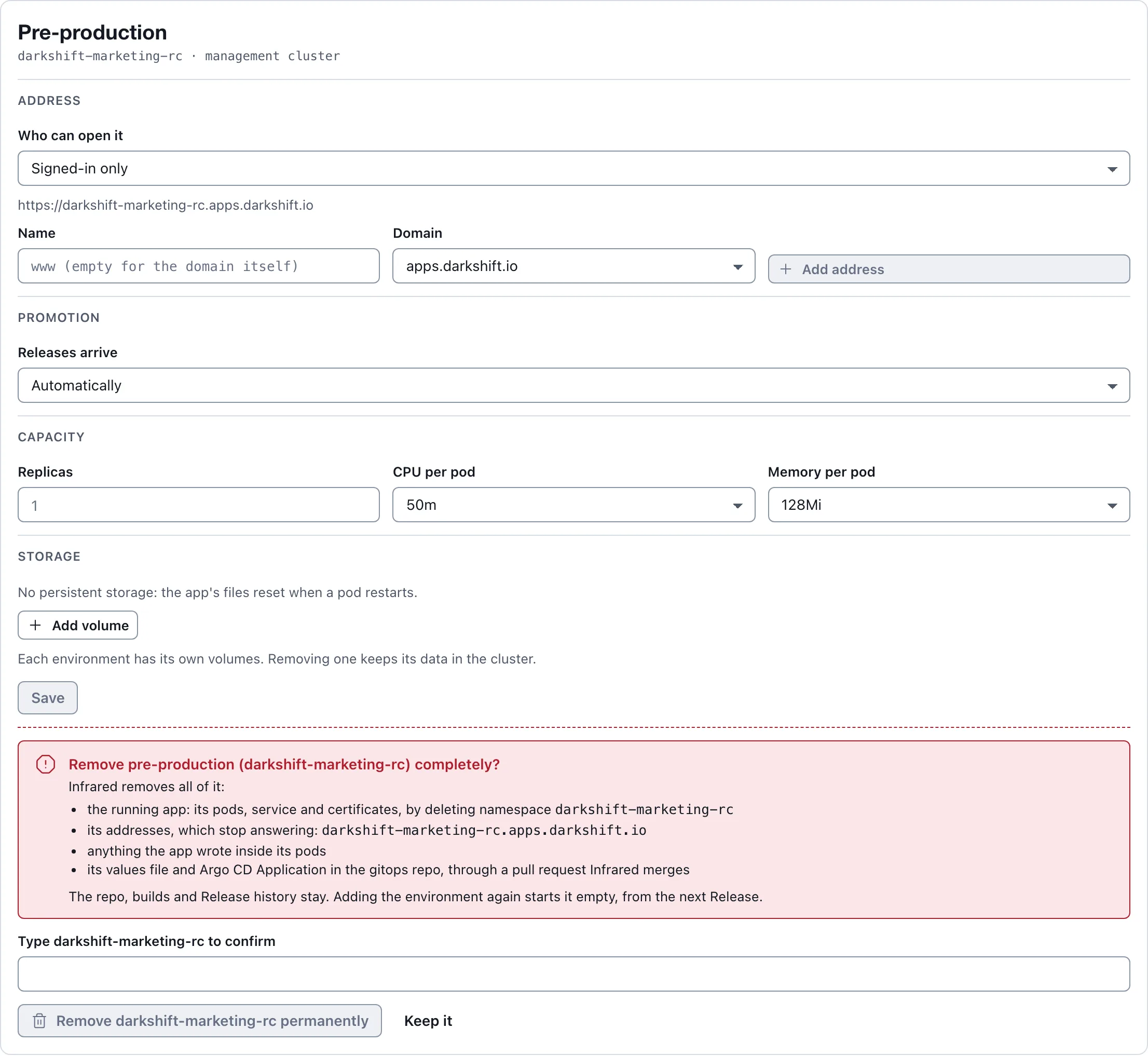
Product → Settings → Instances lists the environments in promotion order. Org admins change each one and choose Save (or Discard); Infrared writes the change into the zone's values file through the gitops repo, and Argo CD applies it. Others see the settings read-only.
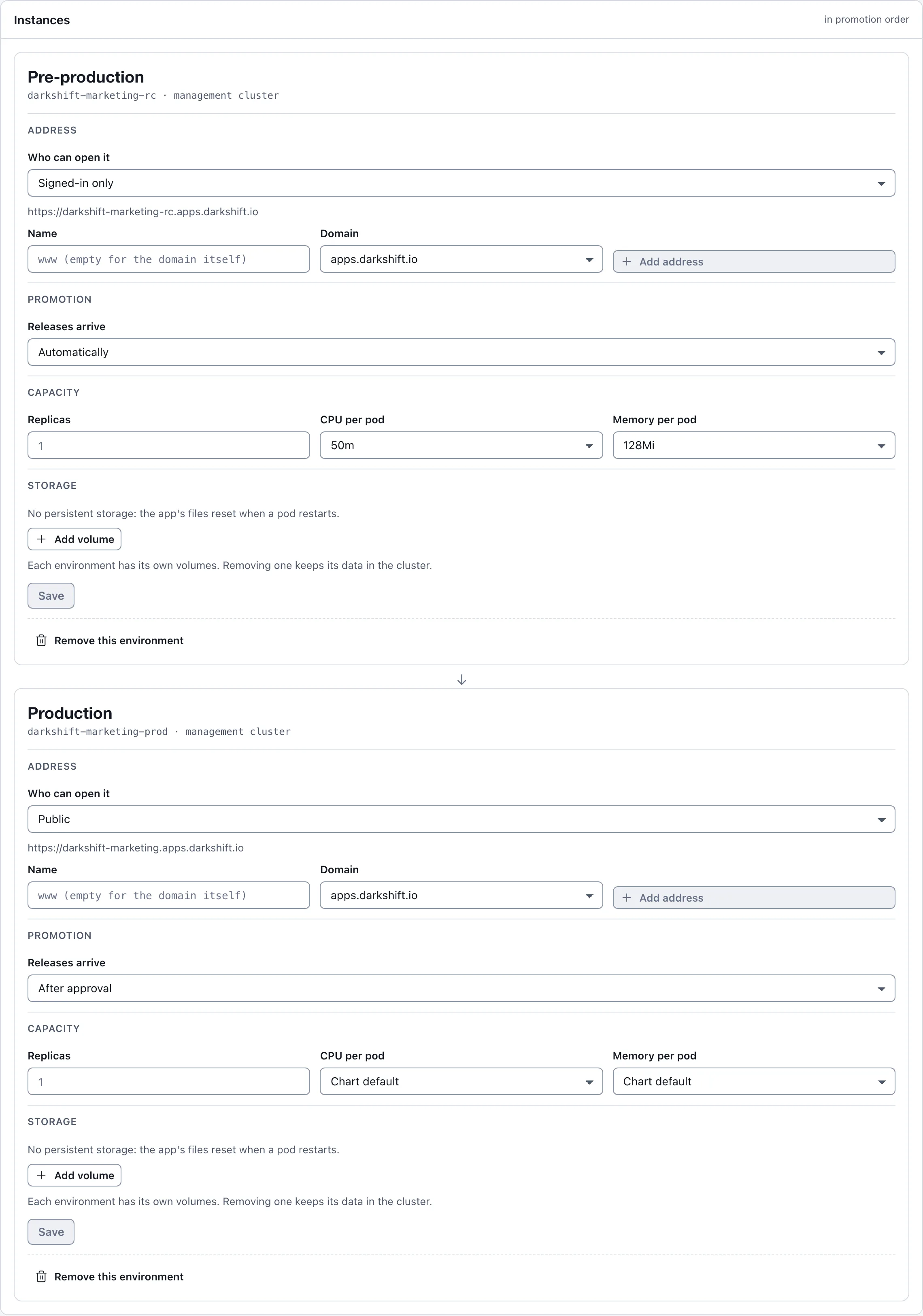
| Setting | What it does |
|---|---|
| Who can open it | Signed-in only, Public (anyone with the address; Infrared asks you to confirm), or No address (reachable only inside the cluster) |
| Addresses | More addresses under the org's verified domains, such as www.acme.com, up to 10: see Domains and addresses |
| Releases arrive | Automatically, or After approval (the default for production) |
| Replicas | How many pods run the app, 0 to 20 |
| CPU per pod and Memory per pod | What each pod reserves; memory is also its limit. Chart default leaves the chart's value |
| Storage | Persistent volumes, up to 8: a name, a size and where the app sees it (for example data, 1Gi, /data). Each environment has its own. Removing a volume keeps its data in the cluster; delete its claim by hand to free the space. With a volume, pods are replaced rather than overlapped, since only one pod can mount it |
Storage needs a chart that knows about volumes, so the section appears for Products Infrared scaffolded from a zip or a template, and for zones that already have volumes.
Add an environment
When a Product has only one of the pair, the bottom of the Instances panel offers Add a production environment (or Add a pre-production environment). Give it a Zone name (<product>-prod or <product>-rc by default), choose its Promotion and Who can open it, then Add zone. It goes last in the promotion order; Infrared writes its files to the gitops repo, and the next Release promotes to it.
Once a Product has shipped to its pre-production zone and has no production zone, its page also says so, and an org admin can add <product>-prod there with one click: promoted after approval, behind sign-in until you make it public. A zone that runs nothing yet while a newer Release exists gets a Promote <version> button that opens that Release.
Remove an environment
Remove this environment, at the bottom of each instance, takes it away for good. Infrared first says what goes with it (the running app, its addresses, its persistent storage and every file in it, and its gitops files; production gets an extra warning) and asks you to type the zone's name. Remove <zone> permanently goes ahead; Keep it backs out.
Then Infrared:
- tells Argo CD to delete everything the zone's Application deployed;
- deletes the zone's values file and Application from the gitops repo through a pull request it merges;
- deletes the Application, and waits while Argo CD deletes the app;
- deletes the zone's namespace on the management cluster, with its volumes and certificates. It deletes only a namespace labelled as the Product's. On a workload cluster the namespace itself stays.
The Instances panel shows progress until the zone is gone. The repo, builds and Release history stay; adding the environment again starts it empty.
Deleting the Product (Settings → Delete product, then Delete <product> permanently) does the same for every environment, and also removes the Product's build and chart from the gitops repo. Its GitHub repos are not touched. If the gitops repo can't be reached, the Product is deleted and its files stay.
Logos
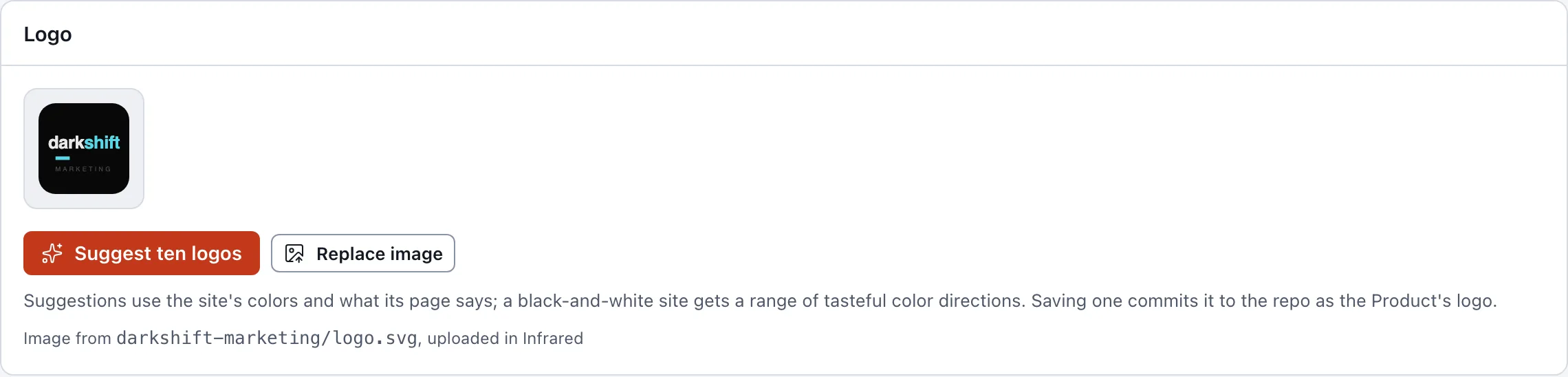
Product → Settings → Logo shows the current logo and where it comes from in the repo. Suggest ten logos designs ten from the site's own colors (from its latest screenshot) and what its live page says, each in parallel in its own preassigned direction (a symbol, a monogram, a wordmark, a badge and so on; for a black-and-white site, each with its own tasteful color pairing). Claude designs them with the org's model provider key, which can take a few minutes; without a key, Infrared offers built-in monograms and a wordmark. Use this commits the SVG to the repo as the Product's logo; Suggest ten more tries again. Replace image uploads your own SVG, PNG, JPEG or WebP, up to 512 KiB. Every suggested SVG is checked to contain no scripts, links, styles or external references. Clicking the logo at the top of the Product's page opens this panel.
API
| Call | Returns |
|---|---|
GET /v1/orgs/{org}/products/{name}/zones | Each environment as it runs |
GET /v1/orgs/{org}/products/{name}/zones/{zone} | One environment in detail: pods, volumes, events, reservations |
GET .../zones/{zone}/metrics?hours=6 | CPU, memory and network series, 1 to 168 hours back (default 1) |
GET .../zones/{zone}/logs?tail=200 | Recent log lines per pod, as text (tail up to 2000, default 200) |
POST /v1/orgs/{org}/products/{name}/logo/suggestions | Logo suggestions (org admins) |
PUT /v1/orgs/{org}/products/{name}/logo | Upload a logo: the raw image as the body with its Content-Type; Infrared commits it to the repo |